






Futureshop to T-soft
Migrating your store from Futureshop to T-soft might seem daunting, but with proper planning and the right tools, it's a smooth process. Follow this step-by-step guide to ensure a successful transition.
Schedule a call
Step-by-Step Migration Guide: FutureShop to T-Soft Migration Guide
Step 1: Preparation and Planning
In this initial step, we will focus on preparing for the migration from FutureShop to T-Soft. This includes assessing your current setup and creating a comprehensive migration plan.
Step 2: Data Migration
This step involves the actual migration of data from FutureShop to T-Soft, ensuring that all critical information is transferred without loss.
Step 3: Theme and Design Setup
In this step, we focus on customizing the look and feel of your new T-Soft store to reflect your brand identity.
Step 4: App Integrations
In this step, we will integrate essential apps and tools into your T-Soft platform to enhance functionality and improve operations.
Step 5: Testing the New Store
This crucial step involves testing your newly set up T-Soft store to ensure everything functions correctly before going live.
Step 6: Launching Your T-Soft Store
In this step, we will finalize preparations and officially launch your T-Soft ecommerce store, transitioning from FutureShop.
Step 7: Post-Launch Optimization
After launching your T-Soft store, this step focuses on optimizing performance and ensuring a smooth ongoing operation.
Power Your Step - Get in Touch
Contact PowerCommerce today for expert assistance in your migration from FutureShop to T-Soft, ensuring a seamless transition and optimized performance.
Step 1: Preparation and Planning
Objective: The primary objective of this step is to lay a solid foundation for the migration process. We need to understand the current ecommerce setup on FutureShop, identify any potential challenges, and outline a clear roadmap for the migration to T-Soft.
Preparation is crucial as it ensures we minimize disruptions during the migration and maintain data integrity. This involves gathering information about your existing database, product listings, customer data, and any custom features you may have implemented on FutureShop.
Steps to Follow:
- Audit Current FutureShop Setup: Review your current ecommerce platform to identify key components that need to be migrated, including:
- Product catalog (products, descriptions, images, prices)
- Customer accounts and order history
- Content (blogs, pages, policies)
- Design elements (themes, custom templates)
- Apps and integrations
- Backup Current Data: Before initiating the migration, create a complete backup of your FutureShop data. This can be done using the following methods:
- Export product data using CSV files.
- Backup customer data through the admin panel.
- Download theme and design files directly from FutureShop.
- Define Migration Goals: Clearly outline the goals of the migration to T-Soft. Consider factors such as:
- Improving site performance
- Enhancing user experience
- Integrating new functionalities
- Preparing for future scalability
- Create a Timeline: Develop a realistic timeline for the migration process. Include milestones and deadlines for each phase of the migration, taking into account peak business periods and customer impact.
- Identify Team Roles: Determine who will be responsible for each aspect of the migration, including technical tasks, content updates, and communication with stakeholders.
Technical Considerations: Ensure that you have access to both your FutureShop and T-Soft accounts. Familiarize yourself with T-Soft's interface and features to facilitate a smooth transition.
Best Practices: Keep clear documentation of your current setup and planned changes to reference throughout the migration process.
Step 2: Data Migration
Objective: The goal of this step is to accurately and securely migrate all relevant data from FutureShop to T-Soft. This includes products, customers, and order information.
The data migration process must be handled with care to ensure that no data is lost and that it remains intact and functional within the new system.
Steps to Follow:
- Export Data from FutureShop: Access the admin panel of FutureShop and export all necessary data. Focus on the following:
- Products: Export product details, including names, descriptions, prices, and images. Use a CSV format for easy import to T-Soft.
- Customers: Export customer accounts and order history to maintain continuity. Ensure you include all relevant customer information.
- Content: Export any additional content, such as blog posts or static pages.
- Prepare Data for T-Soft: Review the exported data files to ensure they are free of errors and formatted correctly for T-Soft. This may include:
- Cleaning up any unnecessary fields or data
- Reformatting certain fields to align with T-Soft's requirements
- Import Data into T-Soft: Log in to your T-Soft account and navigate to the data import section. Follow these steps:
- Select the appropriate import options for products, customers, and content.
- Upload the cleaned CSV files.
- Ensure that all fields match correctly during the import. T-Soft will guide you through mapping fields if necessary.
- Verify Data Integrity: After the import process is complete, conduct a thorough check to ensure that all data has been transferred correctly. Review:
- Product listings for accuracy
- Customer accounts and their order histories
- Content pages for formatting and completeness
Technical Considerations: Pay close attention to any error messages during the import process. T-Soft may provide feedback on data discrepancies, which should be addressed immediately.
Best Practices: Always keep a backup of the original data before making any changes or imports. This ensures that you can restore your data if needed.
Step 3: Theme and Design Setup
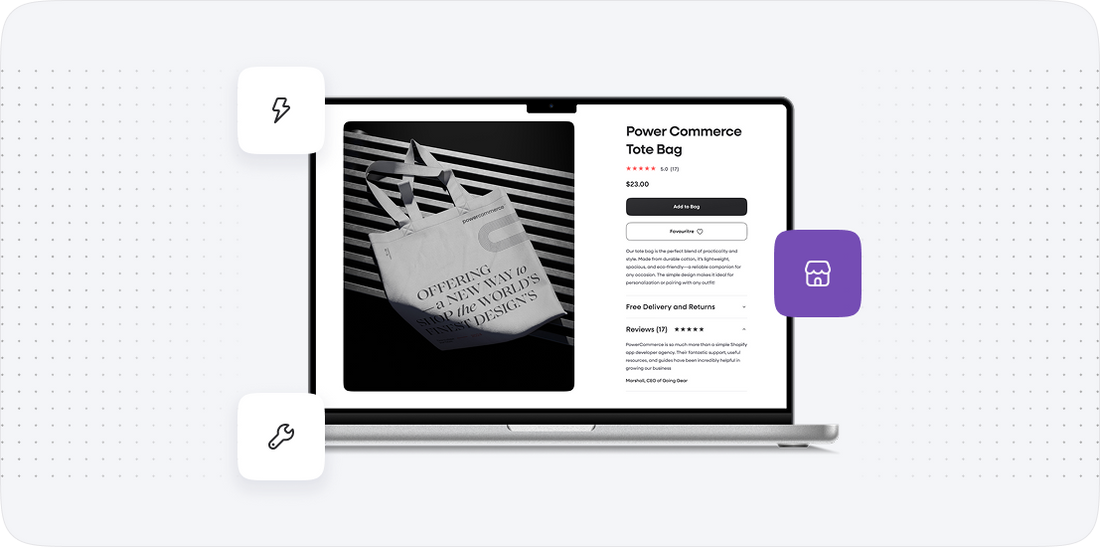
Objective: The aim of this step is to create a visually appealing and brand-consistent design in T-Soft that enhances user experience and retains customer familiarity.
Design plays a crucial role in attracting and retaining customers. A seamless transition in aesthetics from FutureShop to T-Soft will help maintain brand continuity.
Steps to Follow:
- Select a T-Soft Theme: Browse the T-Soft theme library and choose a theme that aligns with your brand identity. Consider the following:
- Visual appeal and layout options
- Mobile responsiveness
- Customization capabilities
- Customize Theme Settings: Once a theme is selected, customize it to suit your branding. This may include:
- Changing color schemes to match your brand
- Updating fonts and typography
- Incorporating your logo and branding elements
- Design Product Pages: Ensure that product pages are visually appealing and functional. Focus on:
- High-quality images and detailed descriptions
- Customer reviews and ratings
- Clear call-to-action buttons
- Set Up Navigation: Create a logical and user-friendly navigation structure. This can include:
- Main menus and submenus for product categories
- Clear pathways for customers to find information
- Preview and Test: Before finalizing your design, preview it in various devices and screen sizes. Conduct usability tests to ensure intuitive navigation and user experience.
Technical Considerations: Be aware of any T-Soft-specific features that allow further customization, such as drag-and-drop functionality or custom coding options.
Best Practices: Aim for a clean, uncluttered design that highlights your products and simplifies the shopping experience for customers.
Step 4: App Integrations
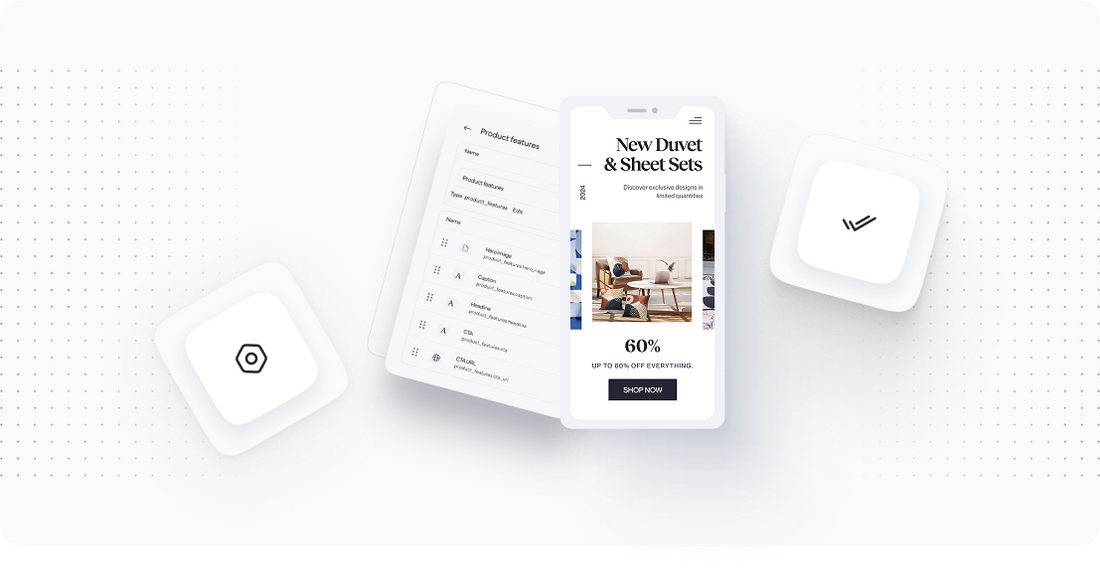
Objective: The goal of this step is to ensure that your T-Soft store is equipped with the necessary applications and integrations to facilitate smooth operations and optimize user experience.
Apps can provide functionalities that enhance marketing, customer service, inventory management, and more. Choosing the right tools is essential for maximizing your store's potential.
Steps to Follow:
- Identify Required Apps: Based on your business needs, list the essential apps you require. This may include:
- Payment gateways (e.g., PayPal, Stripe)
- Shipping and logistics tools
- Marketing and SEO tools
- Customer service chatbots or CRM systems
- Search and Install Apps: Use the T-Soft app marketplace to find and install the necessary applications. Follow these steps:
- Search for each app based on your list.
- Read reviews and check compatibility with T-Soft.
- Install the app and follow any configuration instructions provided.
- Configure App Settings: Once installed, configure each app to align with your business processes. This may involve:
- Setting up payment options and preferences
- Customizing shipping rules and rates
- Integrating with your existing customer relationship management system
- Test App Functionality: After configuration, thoroughly test each app to ensure it works as intended. Check for:
- Payment processing reliability
- Shipping label generation
- Customer communication features
Technical Considerations: Ensure that any third-party apps meet security standards and comply with data protection regulations.
Best Practices: Keep the number of apps to a manageable level to avoid overwhelming the system and complicating processes.
Step 5: Testing the New Store
Objective: The goal of this step is to ensure that all functionalities of your T-Soft store work as intended and that the customer experience is seamless.
Testing helps identify any issues or bugs that may have been overlooked during the setup process. A thorough quality assurance process is essential to launch a successful ecommerce site.
Steps to Follow:
- Conduct Functional Testing: Test all functionalities of your T-Soft store, including:
- Product searches and filters
- Add to cart and checkout processes
- Payment processing
- Shipping options
- Customer account creation and management
- Test Mobile Responsiveness: Check that your store is fully responsive across various devices and screen sizes. Focus on:
- Navigation ease on mobile
- Loading times
- Visual consistency
- Review Performance Metrics: Use T-Soft's analytics tools to monitor performance metrics during testing. Pay attention to:
- Page load times
- Server response times
- Error rates
- Gather Feedback: Involve team members or a select group of customers to test the site and provide feedback. Ask for insights on:
- User experience
- Design aesthetics
- Functionality issues
Technical Considerations: Utilize T-Soft's built-in testing tools to simulate various user scenarios.
Best Practices: Document all testing results and address identified issues before the final launch.
Step 6: Launching Your T-Soft Store
Objective: The main objective of this step is to successfully launch your T-Soft store while ensuring all systems are operational and ready for customer traffic.
A well-planned launch can help generate excitement and attract customers to your new store.
Steps to Follow:
- Finalize All Configurations: Double-check all settings and configurations within T-Soft. This includes:
- Payment gateways
- Shipping options
- Tax settings
- Marketing tools
- Announce the Launch: Create a marketing strategy to announce your store's launch. Consider:
- Email newsletters to existing customers
- Social media campaigns
- Promotional offers or discounts for early shoppers
- Go Live: Switch your domain settings to redirect visitors to your new T-Soft store. Ensure that:
- All links are functioning correctly
- There are no broken images or missing content
- Monitor Launch Performance: After going live, closely monitor your store's performance for any issues. Use T-Soft's analytics to track:
- Visitor traffic
- Order processing times
- Customer feedback
- Be Prepared for Issues: Have your support team on standby to address any immediate issues that arise post-launch. Ensure that they are equipped with troubleshooting guidelines.
Technical Considerations: Make sure that your DNS settings are properly configured to avoid downtime during the transition.
Best Practices: Plan the launch during off-peak hours to reduce the impact on your customers.
Step 7: Post-Launch Optimization
Objective: The goal of this step is to continuously improve your T-Soft store's performance and user experience after the initial launch.
Post-launch optimization is essential for maintaining customer satisfaction and driving ongoing sales.
Steps to Follow:
- Analyze Customer Feedback: Regularly collect and analyze feedback from customers regarding their shopping experience. Focus on:
- Ease of navigation
- Checkout process
- Issues encountered
- Monitor Analytics: Use T-Soft's analytics tools to track key performance indicators. Pay attention to:
- Conversion rates
- Traffic sources
- Abandoned carts
- Regularly Update Content: Keep your store fresh by regularly updating product listings, promotional offers, and content. This helps maintain SEO rankings and customer engagement.
- Optimize Loading Speed: Ensure that your T-Soft store loads quickly by optimizing images and content. Use tools to analyze page speed and implement recommendations.
- Adjust Marketing Strategies: Based on analytical insights, refine your marketing strategies to target the right audience effectively. Consider:
- Email marketing campaigns
- Social media advertising
- SEO improvements
Technical Considerations: Regularly check for software updates or new features available on T-Soft that could enhance your store's functionality.
Best Practices: Create a schedule for regular performance reviews and optimizations to ensure your store remains competitive and effective.
Power Your Step - Get in Touch
Ready to take the next step? At PowerCommerce, we specialize in seamless ecommerce migrations, including FutureShop to T-Soft transitions. Our experienced team is dedicated to ensuring your migration is smooth, efficient, and tailored to your unique business needs.
Contact us today:
- Visit our contact form to reach out for personalized assistance.
- Call us at 800-099-9090 for immediate support and inquiries.
- Email us at [email protected] for detailed questions or to schedule a consultation.
Why Choose PowerCommerce? With over 15 years of industry expertise, we are committed to providing innovative, scalable, and customer-centric solutions. Let us help you power your ecommerce growth!

Unlock dedicated support to shape an incredible future with solutions crafted for scale and innovation.
Let's WorkStay aligned on what's happening in the commerce world


Trusted by 1000+ innovative companies worldwide
Schedule Your Migration Today
For businesses prioritizing simplicity, scalability, and robust support, Shopify is the clear winner.
Looking to migrate without hassle? Power Commerce can handle the entire process, ensuring smooth data transfer, store setup, and post-launch success.
Marka Marulića 2, Sarajevo, 71000 BiH
[email protected]