






Volusion to Drupal commerce
Migrating your store from Volusion to Drupal commerce might seem daunting, but with proper planning and the right tools, it's a smooth process. Follow this step-by-step guide to ensure a successful transition.
Schedule a call
Step-by-Step Migration Guide: Volusion to Drupal Commerce Migration Guide
Step 1: Preparing Your Volusion Store for Migration
In this first step, we focus on gathering all necessary data from your Volusion store to ensure a seamless transition to Drupal Commerce. This involves exporting your product, customer, and order data in compatible formats.
Step 2: Setting Up Your Drupal Commerce Environment
In this step, we establish your Drupal Commerce environment, including installing the platform and necessary modules to support ecommerce functionalities.
Step 3: Importing Data into Drupal Commerce
This step involves importing the previously exported data from your Volusion store into your new Drupal Commerce platform, ensuring all essential information is transferred accurately.
Step 4: Configuring Product Categories and Attributes
In this step, we define product categories and their attributes within Drupal Commerce to ensure a structured and user-friendly shopping experience.
Step 5: Implementing SEO Strategies
SEO optimization is critical for your new store. In this step, we implement SEO strategies to ensure that your Drupal Commerce store ranks well in search engines.
Step 6: Testing Your New Store
Before launching your new Drupal Commerce store, we conduct rigorous testing to ensure everything functions smoothly, from navigation to payment processing.
Step 7: Launching Your New Store
In this final step of the migration process, we launch your new Drupal Commerce store, ensuring all systems are go for customers to start shopping.
Power Your Step - Get in Touch
Ready for a seamless migration to Drupal Commerce? Contact us today to leverage our expert migration support and ensure your success!
Step 1: Preparing Your Volusion Store for Migration
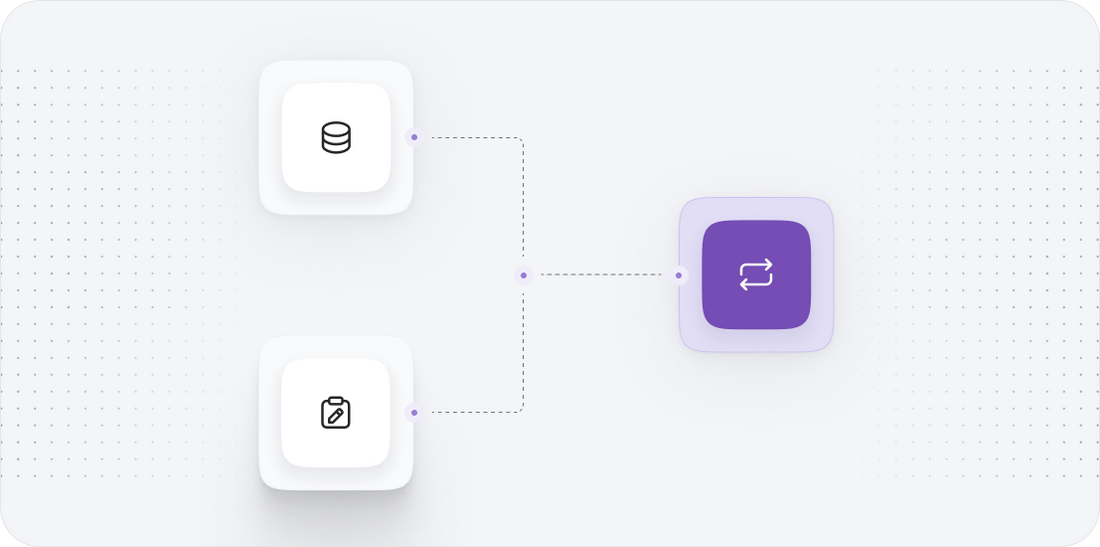
Before we initiate the migration from Volusion to Drupal Commerce, it is crucial to thoroughly prepare your Volusion store. This preparation involves gathering all relevant data that you will want to migrate. This includes products, customers, orders, and other essential information.
First, log into your Volusion admin panel and navigate to the 'Data' section. This section will allow you to export your store data. Here are the key components to focus on:
- Products: Select the option to export your products, ensuring you include all fields such as product names, descriptions, prices, SKUs, and images.
- Customers: Export your customer data, including names, email addresses, billing and shipping addresses, and any other relevant information.
- Orders: Export past orders to maintain your sales history. This should include order numbers, customer details, purchased items, and transaction dates.
Once you have identified the necessary data fields, export them in CSV format, as this is the most compatible format for import into Drupal Commerce. Ensure the data is clean and organized to avoid complications during the migration process.
Step 2: Setting Up Your Drupal Commerce Environment
With your data exported from Volusion, the next step is to set up your Drupal Commerce environment. If you do not already have a Drupal site, you will need to install Drupal on your server.
Follow these steps to set up your Drupal Commerce environment:
- Install Drupal: Download the latest version of Drupal from the official website. Follow the installation instructions to set it up on your preferred hosting environment.
- Install Drupal Commerce: Once Drupal is set up, navigate to the 'Extend' section and search for the 'Commerce' module. Install and enable the module to activate ecommerce functionalities on your site.
- Configure Basic Settings: After installation, configure basic settings such as currency, payment gateways, and shipping methods. Ensure these settings align with your Volusion store’s configurations.
- Install Additional Modules: Depending on your business needs, consider installing additional modules for enhanced functionalities, such as SEO tools, marketing integrations, and analytics.
Once your environment is fully set up, you will be ready to import your data into Drupal Commerce.
Step 3: Importing Data into Drupal Commerce
With your Drupal Commerce environment set up, it's time to import the data exported from your Volusion store. This process involves several key actions to ensure that all important information is accurately transferred.
Here’s how to perform the import:
- Use the Import Module: Drupal Commerce allows for data import via various modules. You can use the 'Migrate' module or other import tools available in the Drupal ecosystem. Install and enable the chosen import module.
- Prepare CSV Files: Make sure your CSV files exported from Volusion are formatted correctly according to Drupal’s requirements. This may involve adjusting column headers or ensuring data types are compatible.
- Select Data to Import: Navigate to the import tool within Drupal Commerce, and select the type of data you wish to import (products, customers, orders, etc.). Upload your CSV files accordingly.
- Map Fields: During the import process, you will need to map the fields from your CSV files to the corresponding fields in Drupal Commerce. This step is critical to ensure data integrity.
- Run the Import: Once everything is mapped out, initiate the import process. Monitor the progress closely to catch any errors or warnings that may arise.
Once the import is complete, verify that all your data has been transferred correctly by checking the relevant sections of your Drupal Commerce dashboard.
Step 4: Configuring Product Categories and Attributes
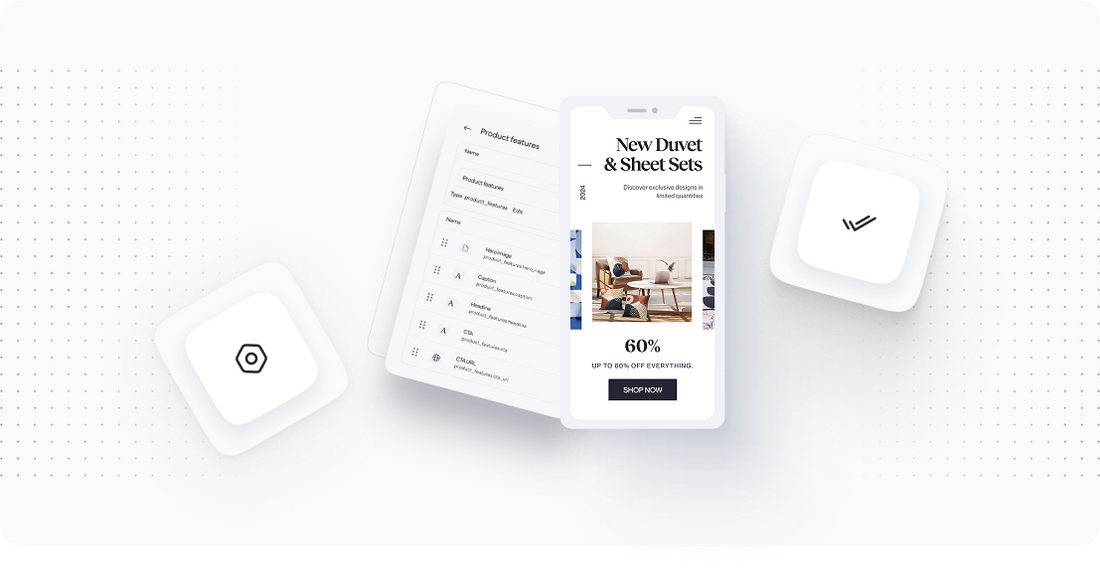
After importing your products into Drupal Commerce, the next step is to configure your product categories and attributes. This is essential for organizing your store and ensuring customers can easily navigate through your offerings.
Follow these steps to set up categories and attributes:
- Create Product Categories: In the Drupal Commerce dashboard, navigate to the 'Products' section and select 'Categories.' Create categories that reflect your product lines, ensuring they are logical and easy to understand.
- Assign Products to Categories: Go through your imported products and assign them to the relevant categories you just created. This will help in organizing your store and improving the shopping experience for customers.
- Define Attributes: Attributes such as size, color, and material are crucial for product variations. Set up these attributes in the 'Attributes' section of Drupal Commerce. Be sure to map these attributes to the corresponding products.
- Set Up Variants: If your products have variations, such as different sizes or colors, configure these variants under the product settings. Ensure that each variant has the correct attributes assigned.
This step is crucial for maintaining a well-organized product catalog that can enhance customer navigation and improve conversion rates.
Step 5: Implementing SEO Strategies
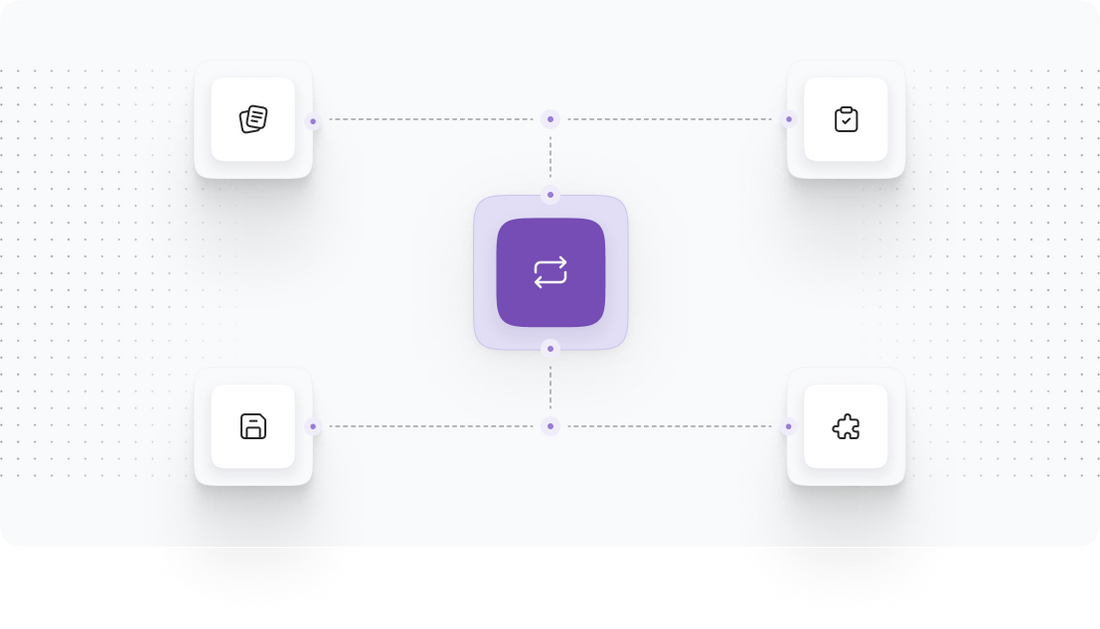
Once your products and categories are set up, it’s essential to implement SEO strategies to help your new Drupal Commerce store rank well in search engines. Since SEO impacts visibility and traffic, this is a crucial step.
Here’s how to optimize your store for SEO:
- Set SEO-Friendly URLs: Ensure that your product and category URLs are descriptive and include relevant keywords. This can usually be configured in the URL settings of each product or category.
- Create Meta Tags: For each product and category, add relevant meta titles and descriptions that include keywords. This helps search engines understand the content of your pages.
- Implement a Sitemap: Use a module to generate an XML sitemap for your site. This helps search engines index your pages more effectively.
- Optimize Images: Ensure that all product images have alt attributes that describe the image content. This not only helps with SEO but also improves accessibility.
- Utilize SEO Modules: Consider installing additional SEO modules available in the Drupal ecosystem to enhance your site’s SEO capabilities.
By following these steps, you will improve your store's visibility and attract more organic traffic.
Step 6: Testing Your New Store
Before officially launching your new Drupal Commerce store, it is imperative to conduct thorough testing. This ensures that all functionalities work as intended and provides a seamless experience for your customers.
Here are the key areas to focus on during testing:
- Navigation and Usability: Test all navigation links and ensure that customers can easily find products, access categories, and use the search function without issues.
- Product Functionality: Check that all product pages display correctly, including images, prices, descriptions, and variant options. Test the add-to-cart functionality to ensure products can be successfully added to the cart.
- Checkout Process: Simulate a complete checkout process to ensure that payments are processed correctly. Test different payment methods to verify their functionality.
- Mobile Responsiveness: Ensure that your store is fully responsive on mobile devices. Test various screen sizes to confirm compatibility.
- Performance Testing: Check the loading speed of your store and ensure it meets performance standards. Tools like Google PageSpeed Insights can help assess this.
After completing these tests and addressing any issues that arise, your store will be ready for launch.
Step 7: Launching Your New Store
With testing complete and all systems functioning smoothly, it’s time to launch your new Drupal Commerce store. This is an exciting step, but it’s important to ensure everything is in place for a successful launch.
Here’s how to prepare for the launch:
- Final Checks: Conduct one last review of the entire site to ensure that everything is ready. Pay attention to any last-minute details that need addressing.
- DNS Settings: If you are transferring a domain, update your DNS settings to point to your new Drupal Commerce store. Ensure there are no disruptions during this process.
- Announce Your Launch: Use your existing marketing channels to announce the launch of your new store. Email newsletters, social media posts, and blog updates are effective ways to drum up excitement.
- Monitor Performance: After the launch, continuously monitor your store’s performance. Use analytics tools to track visitor behavior and sales, making adjustments as needed.
- Customer Support: Be prepared to handle any customer inquiries or issues that arise post-launch. Ensure your support team is ready to assist.
Congratulations! Your Volusion to Drupal Commerce migration is complete, and your new store is live, ready to serve customers and drive sales.
Power Your Step - Get in Touch
At PowerCommerce, we specialize in making your migration process as smooth and efficient as possible. Our extensive experience in ecommerce migrations will ensure that your transition from Volusion to Drupal Commerce is seamless and hassle-free.
Contact us today:
- Visit our contact page to fill out our inquiry form.
- Call us at 800-099-9090 to speak with our migration specialists directly.
- Email us at [email protected] for any inquiries or to request a consultation.
Don’t wait--leverage our expertise and take your ecommerce business to the next level. Let’s get started on your migration today!

Unlock dedicated support to shape an incredible future with solutions crafted for scale and innovation.
Let's WorkStay aligned on what's happening in the commerce world


Trusted by 1000+ innovative companies worldwide
Schedule Your Migration Today
For businesses prioritizing simplicity, scalability, and robust support, Shopify is the clear winner.
Looking to migrate without hassle? Power Commerce can handle the entire process, ensuring smooth data transfer, store setup, and post-launch success.
Marka Marulića 2, Sarajevo, 71000 BiH
[email protected]