






Shopware to Base
Migrating your store from Shopware to Base might seem daunting, but with proper planning and the right tools, it's a smooth process. Follow this step-by-step guide to ensure a successful transition.
Schedule a call
Step-by-Step Migration Guide: Shopware to BASE migration guide
Step 1: Preparation for Migration
In this step, we will outline the essential preparations required before initiating the migration from Shopware to BASE. This includes backing up your data and ensuring that your current Shopware setup is ready for the transfer.
Step 2: Data Export from Shopware
This step focuses on exporting your existing data from Shopware, including products, customers, and orders, in a format that is compatible with BASE.
Step 3: Setting Up BASE
This step involves configuring your BASE account and preparing it to receive data from Shopware, ensuring that all necessary settings align with your business needs.
Step 4: Importing Data into BASE
In this step, we will cover the process of importing the exported data from Shopware into your new BASE store to ensure all your products, customers, and orders are accurately transferred.
Step 5: Store Optimization in BASE
This step focuses on optimizing your new BASE store to align with your brand and enhance user experience, covering layout, design, and functionality.
Step 6: Testing Your New BASE Store
This step involves rigorously testing your BASE store to ensure functionality and performance, identifying any issues before going live.
Step 7: Launching Your BASE Store
The final step involves launching your BASE store, making it accessible to customers, and monitoring initial performance closely.
Power Your Step - Get in Touch
Ready to migrate your store from Shopware to BASE? Contact us today for expert support and seamless migration services tailored to your business needs.
Step 1: Preparation for Migration
Before we begin the migration process from Shopware to BASE, it is crucial to lay a solid foundation. This preparation phase ensures that your data is secure and that the migration proceeds smoothly. The main objectives of this step include backing up your existing Shopware data, assessing compatibility with BASE, and creating a migration plan.
To start with, we recommend executing the following tasks:
- Backup Shopware Data: Utilize the built-in features of Shopware to create a complete backup of your data. This should include:
- Database exports (using tools like phpMyAdmin or command-line utilities).
- Media files and any custom templates or plugins.
- Configuration files that may need to be referenced later.
- Assess Compatibility: Review the types of data and features you currently use in Shopware. Make a note of:
- The different product types (simple, configurable, etc.) and their associated attributes.
- Customer data, including any custom fields.
- Order history and payment methods that need to be replicated in BASE.
- Create a Migration Plan: Draft a migration strategy that outlines:
- The timeline for the migration process.
- Key stakeholders involved in the migration.
- Any potential downtime and how to mitigate its impact on customers.
With these preparations in place, you can proceed to the next step of the migration process with confidence.
Step 2: Data Export from Shopware
Data export from Shopware is a critical step in the migration process, as it allows us to transfer essential data to the BASE platform. The main goal here is to ensure that all relevant data is extracted in a structured format that can be easily imported into BASE.
Follow these steps to successfully export your data:
- Access the Shopware Administration Panel: Log into your Shopware admin panel to access the data you need to export.
- Export Products: Navigate to the 'Catalog' section and select 'Products'. Use the export function to obtain a CSV or XML file containing all product details, including attributes, categories, and images. Ensure to include all relevant fields to maintain data integrity.
- Export Customers: Go to the 'Customers' section. Similar to the product export, utilize the export function to create a file containing customer information such as names, email addresses, and any custom fields.
- Export Orders: Access the 'Orders' section and export all historical order data. This includes order status, items purchased, customer details, and payment information. It's vital to export this data to maintain continuity in customer service.
- Review and Clean Data: Open the exported files and review them for any inconsistencies or unnecessary data. Clean up the files as needed to ensure only relevant information is included for the import into BASE.
By completing these steps, you will have successfully gathered all the essential data required for a smooth migration to BASE. Proceed to the next step to prepare for the import process.

Step 3: Setting Up BASE
With your data exported from Shopware, the next phase is to set up your BASE account effectively. This step is crucial to ensure that the platform is tailored to your business requirements and ready to accept the incoming data.
Here’s how to set up BASE for your migration:
- Create a BASE Account: If you don’t already have an account, visit the BASE website and sign up for a new account. Choose a plan that best suits your business needs.
- Configure Store Settings: Once your account is set up, navigate to the settings section and configure the following:
- Store name and logo.
- Currency and payment methods, ensuring they match your offerings in Shopware.
- Shipping settings, including shipping zones and rates.
- Set Up Categories: Create the necessary product categories in BASE that correspond to those in Shopware. This ensures that products are organized similarly post-migration.
- Import Test Data: To familiarize yourself with the BASE interface, consider importing a small set of test data. This will help you understand how data is organized and displayed in the platform.
Completing these steps will provide a solid foundation for the data import process. We can now move on to the actual data import from Shopware.
Step 4: Importing Data into BASE
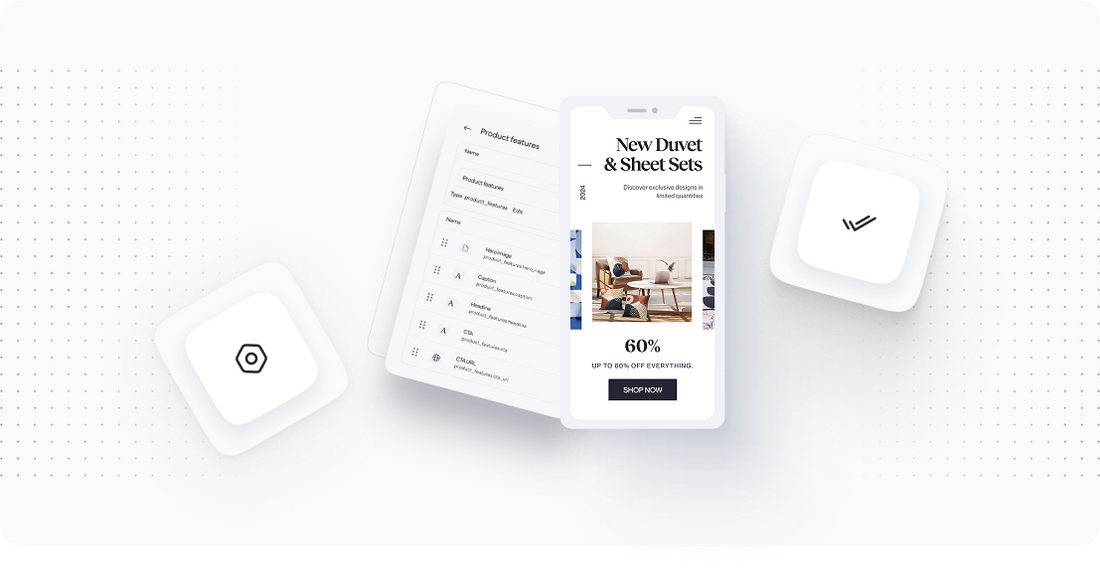
Now that BASE is fully set up and ready to receive data, it’s time to import the previously exported files from Shopware. This step is pivotal as it directly influences how your store will function post-migration.
Follow these steps to effectively import your data into BASE:
- Access the Import Tool: Log into your BASE account and navigate to the import section. BASE provides an intuitive interface for importing various types of data.
- Import Products: Use the import tool to upload the product CSV or XML file that you exported from Shopware. During this process, you may need to map the fields from your Shopware export to the corresponding fields in BASE. This ensures that all data is accurately represented.
- Import Customers: Repeat the import process for the customer data file. Ensure that all necessary fields are mapped correctly, including email addresses and any custom attributes.
- Import Orders: Finally, import your order data. This step is crucial for maintaining customer order history. Ensure that the order statuses and details are accurately reflected in BASE.
- Verify Imported Data: After each import, check the imported data for accuracy. Look for missing fields, incorrect mappings, or any data integrity issues. BASE allows you to edit any discrepancies directly.
Upon successful data import, you will have transitioned your essential data from Shopware to BASE, paving the way for the next step in your migration journey, which focuses on optimizing your store.
Step 5: Store Optimization in BASE
With all your data now imported into BASE, it’s time to optimize your online store for a better user experience and higher conversion rates. This step is essential for ensuring that your new platform not only looks good but also functions effectively.
Here are the main areas to focus on during the optimization process:
- Customize Store Design: Utilize BASE’s design tools to customize your store’s appearance. You can:
- Select a theme that aligns with your brand identity.
- Use drag-and-drop features to rearrange elements on your homepage.
- Adjust color schemes and typography to improve readability and aesthetics.
- Enhance Product Pages: Optimize your product pages by:
- Writing compelling product descriptions that highlight features and benefits.
- Adding high-quality images and videos to showcase products.
- Implementing customer reviews and ratings to build trust.
- Streamline Navigation: Ensure that your store navigation is user-friendly:
- Create clear categories and subcategories for products.
- Add filters and sorting options to help customers find products quickly.
- Optimize for SEO: Implement SEO best practices to enhance your store's visibility:
- Use relevant keywords in product titles and descriptions.
- Set up SEO-friendly URLs and meta tags for each page.
- Utilize BASE’s built-in SEO tools to monitor performance.
By optimizing your BASE store, you will create a seamless shopping experience that can lead to increased customer satisfaction and higher sales.
Step 6: Testing Your New BASE Store
Before officially launching your new BASE store, thorough testing is essential to ensure that everything is functioning as expected. This will help identify any issues that could affect user experience or sales performance.
Follow these testing protocols:
- Functionality Testing: Check all functionalities, including:
- Product searching and filtering capabilities.
- Shopping cart operations, including adding/removing products.
- Checkout process from cart to payment confirmation.
- Cross-Browser Testing: Ensure that your store displays correctly across different browsers (Chrome, Firefox, Safari, etc.) and devices (desktop, tablet, mobile).
- Performance Testing: Use tools like Google PageSpeed Insights to evaluate your site’s loading speed and performance. Optimize any elements that slow down the site.
- Integration Testing: Test any third-party integrations (e.g., payment gateways, shipping providers) to ensure they work smoothly with your new store.
Document any issues found during testing and address them before launching the store. Once all tests are successfully passed, you can prepare for the final migration step.
Step 7: Launching Your BASE Store
Congratulations! You’re now ready to launch your new BASE store. This step marks the culmination of your migration efforts, and it’s vital to ensure a successful launch that sets the stage for future growth.
Here’s how to go about launching your store:
- Choose a Launch Date: Select a date and time for your store launch that aligns with your marketing plans. Consider timing it during a high-traffic period for maximum visibility.
- Notify Your Customers: Use email marketing and social media to inform your existing customers about the new store launch. Highlight new features and promotions to entice them to visit.
- Monitor Store Performance: Once your store is live, closely monitor performance metrics including:
- Traffic analytics to gauge visitor numbers.
- Sales data to assess initial sales performance.
- User feedback to identify areas for improvement.
- Be Prepared for Issues: Have a support plan in place to address any issues that may arise post-launch. Be responsive to customer inquiries and feedback to build trust and loyalty.
By following these steps, you will ensure a successful launch of your BASE store and set the foundation for ongoing success in your ecommerce endeavors.
Power Your Step - Get in Touch
At PowerCommerce, we specialize in helping ecommerce brands like yours successfully transition from one platform to another. Our team of experts is ready to assist you throughout the entire migration process, ensuring that your transition is smooth and efficient.
Why choose PowerCommerce?
- Over 15 years of experience in the ecommerce industry.
- Customer-centric approach focused on your unique needs.
- Data-driven decision-making to optimize your migration strategy.
Don’t let the challenges of migration hold you back. Let us power your ecommerce journey. To get in touch, follow these simple steps:
- Visit our contact page: Contact Us
- Call us at: 800-099-9090
- Email us at: [email protected]
Reach out to us today, and let's discuss how we can support your migration to BASE!

Unlock dedicated support to shape an incredible future with solutions crafted for scale and innovation.
Let's WorkStay aligned on what's happening in the commerce world


Trusted by 1000+ innovative companies worldwide
Schedule Your Migration Today
For businesses prioritizing simplicity, scalability, and robust support, Shopify is the clear winner.
Looking to migrate without hassle? Power Commerce can handle the entire process, ensuring smooth data transfer, store setup, and post-launch success.
Marka Marulića 2, Sarajevo, 71000 BiH
[email protected]