






Shoper to Imweb
Migrating your store from Shoper to Imweb might seem daunting, but with proper planning and the right tools, it's a smooth process. Follow this step-by-step guide to ensure a successful transition.
Schedule a call
Step-by-Step Migration Guide: Shoper to Imweb Migration Guide
Step 1: Prepare Your Existing Shoper Store
In this initial step, we focus on thoroughly preparing your Shoper store for a smooth migration to Imweb. We will cover the importance of data backup and what specific data needs to be secured before the migration begins.
Step 2: Configure Your Imweb Account
Next, we will set up your Imweb account to prepare for the incoming data from Shoper. This step involves choosing the right plan and configuring essential settings.
Step 3: Import Data to Imweb
In this step, we will import the backed-up data from Shoper into your new Imweb store. This process will include product, customer, and order data.
Step 4: Customize Your Imweb Store
In this step, we will customize the look and feel of your Imweb store to align with your brand identity, ensuring a unique shopping experience for your customers.
Step 5: Test Functionalities of Your Imweb Store
In this step, we will conduct thorough testing of your Imweb store’s functionalities to ensure everything operates as intended before launching it to customers.
Step 6: Launch Your Imweb Store
Finally, we will launch your new Imweb store, marking the successful migration from Shoper. This step will include notifying customers and promoting your new platform.
Step 7: Post-Migration Support and Optimization
After the launch, we will focus on optimizing your Imweb store's performance and providing ongoing support to ensure its success.
Power Your Step - Get in Touch
Ready to make your migration to Imweb a success? Contact PowerCommerce for expert assistance.
Step 1: Prepare Your Existing Shoper Store
Before we begin the migration from Shoper to Imweb, it is vital to prepare your existing store. This preparation ensures that we have secured all necessary data and that the transition to Imweb is seamless and efficient.
The first step in our migration process involves performing a comprehensive backup of your Shoper store. This backup is crucial as it safeguards your data against any potential loss during the migration process. Here’s how we do it:
- Backup Data: We utilize Shoper's export tools to create backups of essential data, including:
- Product information (descriptions, prices, images)
- Customer data (names, emails, addresses)
- Order history (past orders, statuses)
- Site settings (theme configurations, payment methods)
- Exporting Data: We navigate to the admin panel of Shoper and follow these steps:
- Go to the 'Products' section and select 'Export.'
- Choose the data format (CSV recommended) and export all product data.
- Repeat this process for 'Customers' and 'Orders.'
- Data Storage: Store the exported files securely on your local device or a cloud-based service to ensure easy access during the migration process.
- Review Backups: Verify that the backups are complete and contain all necessary information.
By taking these steps, we ensure that your data is safe and ready for the next phase of the migration to Imweb.
Step 2: Configure Your Imweb Account
After ensuring that all necessary data from your Shoper store is backed up, the next step is to configure your Imweb account. Proper configuration is critical for a successful migration, as it lays the groundwork for how your store will operate on the new platform.
Here’s how we do it:
- Sign Up for Imweb: If you haven't already, create an account on Imweb. Navigate to the Imweb website and complete the registration process.
- Select a Plan: Choose an appropriate plan that suits your business needs. Imweb offers various pricing tiers based on features and capacity:
- Understand the features available in each plan.
- Select a plan that aligns with your expected traffic and product volume.
- Set Up Store Settings: Once your account is created, log in and navigate to the store settings. Key configurations include:
- Store name and logo upload
- Currency settings based on your target market
- Shipping and payment methods configuration
- Testing Configuration: After setting up, perform a test to ensure that everything is configured correctly. Verify payment gateways and shipping options to avoid issues post-migration.
By configuring your Imweb account properly, we ensure that it is ready to accept the data migrated from your Shoper store, facilitating a smooth transition.
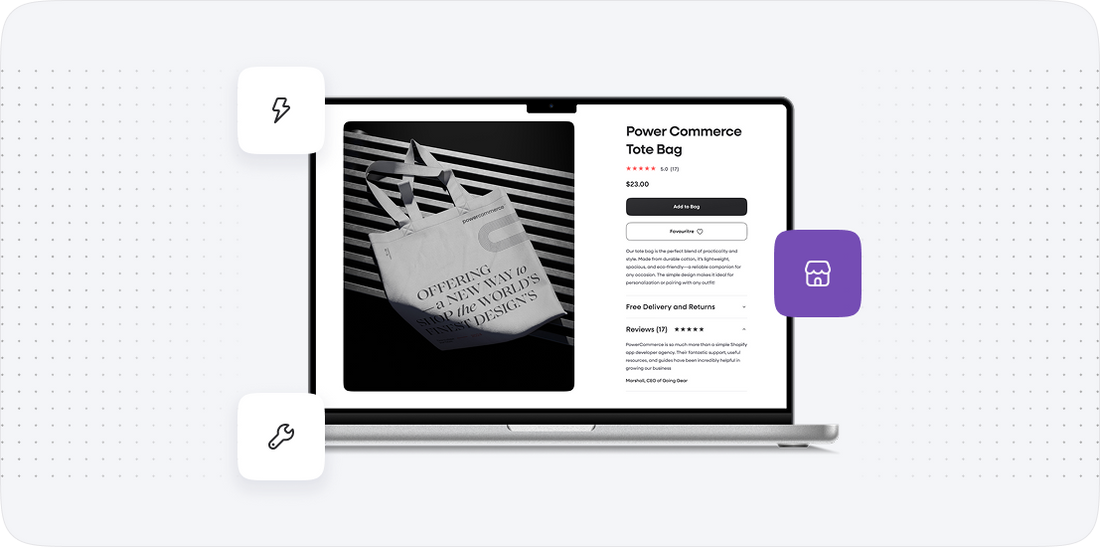
Step 3: Import Data to Imweb
With your Imweb account configured, we can now move onto the crucial phase of importing all the backed-up data from Shoper into your new Imweb store. This step is essential to retain your existing customer relationships and product listings.
The data import process involves the following:
- Accessing the Import Tool: Log into your Imweb account and navigate to the Import section. This is usually found under the data management or store settings menu.
- Uploading Data Files: For each type of data (products, customers, orders), follow these steps:
- Select the type of data you are importing.
- Upload the CSV files created during the backup process from Shoper.
- Data Mapping: Imweb will prompt you to map the fields from your CSV to the corresponding fields in Imweb. It’s vital to ensure:
- Product names map to product titles
- Prices match their corresponding fields
- Customer emails and addresses are correctly aligned
- Run the Import: Execute the import and monitor for any error messages or warnings. Imweb will typically provide a summary once the import is complete, highlighting any issues encountered during the process.
By correctly importing all necessary data, we ensure that your new Imweb store reflects the structure and customer base of your previous Shoper store.
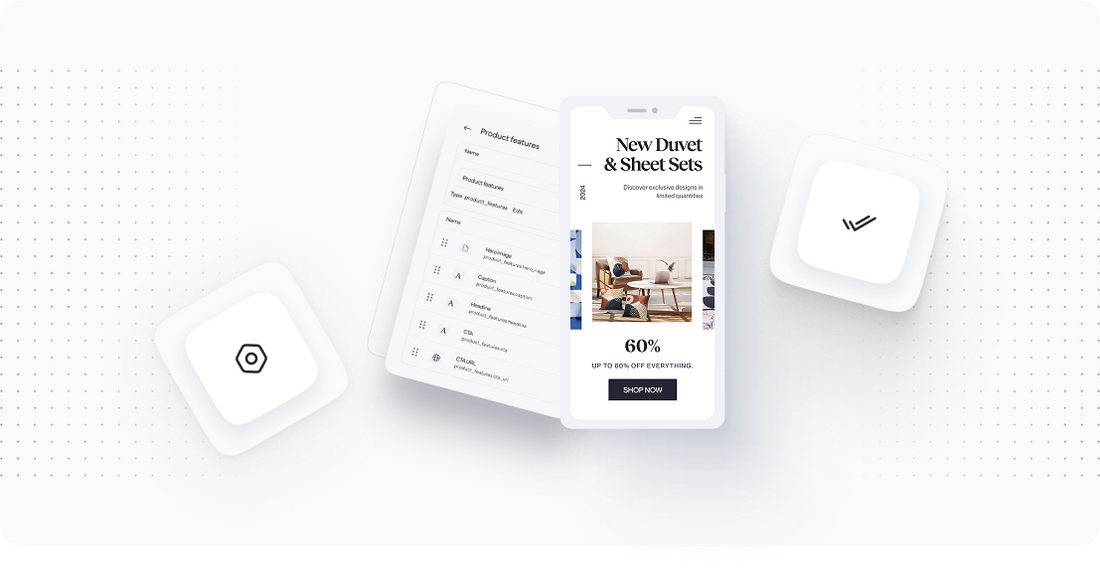
Step 4: Customize Your Imweb Store
With your data now imported into Imweb, it's time to customize your store's appearance and functionalities. This step is vital to ensure that your new online store aligns with your brand identity and provides a seamless user experience.
Here’s how we proceed with customization:
- Select a Theme: Imweb offers a variety of themes. Choose one that best represents your brand. Consider the following:
- Visual appeal and alignment with your brand colors
- Responsiveness and mobile compatibility
- Customize Your Theme: Once you’ve selected a theme, utilize Imweb’s customization tools to adjust:
- Header and footer design
- Typography and color schemes
- Layout of product categories and featured items
- Add Brand Elements: Upload your logo and other brand assets. This includes:
- Custom graphics or banners that highlight promotions
- Brand-specific imagery that resonates with your target audience
- Set Up Custom Pages: Create important pages like:
- About Us
- Contact Us
- Return Policy
- Preview Your Store: Before going live, preview your store to ensure everything appears correctly and functions as intended.
Customizing your Imweb store ensures that it not only looks professional but also provides a unique shopping experience for your customers, enhancing brand loyalty.
Step 5: Test Functionalities of Your Imweb Store
Before officially launching your Imweb store, we must conduct comprehensive testing to ensure that every aspect works seamlessly. This testing phase is crucial to identify and resolve any issues that could affect customer experience.
Here’s how we go about testing:
- Order Placement Testing: Simulate the customer experience by placing a test order:
- Add products to the cart.
- Proceed to checkout and complete the order using a test payment method.
- Checkout Process Verification: Ensure that:
- All checkout steps function correctly (shipping options, payment gateways, order confirmation).
- Emails are sent to customers for order confirmations and shipping notifications.
- Mobile Responsiveness Check: Test your store on various devices (mobile, tablet, desktop) to ensure that:
- The site is fully responsive and user-friendly across all platforms.
- No elements are missing or misaligned in the mobile view.
- Functionality of Integrations: Verify that any third-party apps or integrations are working correctly, including:
- Payment gateways
- Shipping providers
- Analytics tools
- Site Performance Testing: Use tools to assess your site’s load speed and overall performance under different conditions.
By thoroughly testing your store's functionalities, we ensure that it is fully operational and ready to provide a seamless shopping experience for your customers.
Step 6: Launch Your Imweb Store
With all preparations, configurations, and testing completed, we are now ready to launch your Imweb store. This step marks the culmination of our migration efforts from Shoper to Imweb.
Here’s how we proceed with the launch:
- Final Review: Conduct a last-minute review of all store settings, ensuring:
- All products are displayed correctly
- Prices are accurate
- Payment methods are functional
- Notify Existing Customers: Send out an announcement to your existing customer base via email or social media, informing them of the new store:
- Share the launch date and any special promotions for early shoppers.
- Encourage feedback to enhance customer engagement.
- Launch Day Promotions: Consider offering a launch promotion, such as:
- Discounts on first purchases
- Free shipping for a limited time
- Monitor Performance Post-Launch: After launching, closely monitor your store's performance during the initial days. Key areas to focus on include:
- Website traffic
- Sales performance
- Customer feedback and inquiries
- Plan for Ongoing Marketing: Develop a marketing strategy to continuously promote your new online store. Consider:
- Social media advertising
- Email marketing campaigns
Launching your new Imweb store signifies the beginning of a new chapter for your business. By following these final steps, we ensure that your launch is successful and resonates positively with your customers.
Step 7: Post-Migration Support and Optimization
After successfully launching your new Imweb store, the final step involves providing ongoing support and optimization strategies to ensure the continued success of your online business.
This phase includes several key actions:
- Performance Monitoring: Regularly check your store's performance metrics, including:
- Website speed and loading times
- Order conversion rates
- Customer engagement metrics
- Feedback Gathering: Continue to collect feedback from customers about their shopping experience. This can be done through:
- Email surveys
- Social media polls
- Continuous Optimization: Based on feedback and performance data, make necessary adjustments to:
- Product listings and descriptions
- Marketing strategies and promotional campaigns
- Website layout and user experience
- Training and Support: Ensure that your team is well-trained in using Imweb's features. This might include:
- Regular training sessions to familiarize your team with the platform
- Access to Imweb’s customer support resources for troubleshooting
- Strategic Growth Planning: Plan for future growth by exploring:
- New product lines
- Expanding into new markets
Post-migration support and ongoing optimization are essential to ensure that your new Imweb store thrives and grows in a competitive market.
Power Your Step - Get in Touch
Take the Next Step with Confidence! At PowerCommerce, we are committed to ensuring your migration journey from Shoper to Imweb is smooth and successful. Our team of experts is here to help you every step of the way.
To get started, simply reach out to us through the following channels:
- Visit our contact form to schedule a consultation.
- Call us at 800-099-9090 for immediate assistance.
- Email us at [email protected] for any inquiries.
Don’t wait! Contact us today and empower your ecommerce growth with PowerCommerce!

Unlock dedicated support to shape an incredible future with solutions crafted for scale and innovation.
Let's WorkStay aligned on what's happening in the commerce world


Trusted by 1000+ innovative companies worldwide
Schedule Your Migration Today
For businesses prioritizing simplicity, scalability, and robust support, Shopify is the clear winner.
Looking to migrate without hassle? Power Commerce can handle the entire process, ensuring smooth data transfer, store setup, and post-launch success.
Marka Marulića 2, Sarajevo, 71000 BiH
[email protected]