






Bigcommerce to Imweb
Migrating your store from Bigcommerce to Imweb might seem daunting, but with proper planning and the right tools, it's a smooth process. Follow this step-by-step guide to ensure a successful transition.
Schedule a call
Step-by-Step Migration Guide: BigCommerce to Imweb migration guide
Step 1: Preparing for Migration
In this step, we focus on gathering essential data and preparing your BigCommerce store for migration to Imweb, ensuring a seamless transition.
Step 2: Exporting Data from BigCommerce
This step involves exporting all crucial data from your BigCommerce store, including products, customer information, and order history.
Step 3: Setting Up Your Imweb Store
In this step, we focus on configuring your new Imweb store, including adding products, setting payment gateways, and customizing your layout.
Step 4: Testing Your Imweb Store
In this step, we conduct thorough testing to ensure that all functionalities work as expected before going live.
Step 5: Launching Your Imweb Store
In this step, we focus on launching your Imweb store and ensuring a smooth transition for your customers.
Step 6: Post-Migration Optimization
This step involves analyzing your Imweb store's performance and making necessary adjustments to optimize for conversions.
Step 7: Continuous Monitoring and Support
In this step, we emphasize the importance of ongoing monitoring and support for your Imweb store to ensure its long-term success.
Power Your Step - Get in Touch
Ready to take your ecommerce business to the next level? Contact PowerCommerce for expert migration support.
Step 1: Preparing for Migration
Preparing for the migration from BigCommerce to Imweb is a critical phase that sets the foundation for a successful transition. This step involves collecting all necessary data, ensuring that you have a clear understanding of your current store's configuration, and planning for how this will translate into the new Imweb environment.
The objectives of this step include:
- Ensuring you have a complete backup of your BigCommerce store, which includes products, customer data, orders, and site content.
- Reviewing your current store settings and noting any customizations that you wish to replicate on Imweb.
- Understanding the specific features available on Imweb and how they align with your business needs.
- Documenting your current sales processes and identifying any changes needed in the new setup.
To ensure a smooth migration, follow these detailed steps:
- Backup Your BigCommerce Store: Access your BigCommerce admin panel and navigate to the Store Settings. Utilize the Export feature to save your product data, customer details, and order history in CSV format. Make sure to also save custom themes and any other assets you need.
- Review and Document Current Settings: Take note of all current settings in your BigCommerce store. This includes payment gateways, shipping options, tax settings, and any integrations you currently utilize. Create a checklist of these settings for easy reference during the migration.
- Analyze Your Store Features: Compare the features of BigCommerce with those offered by Imweb. Identify essential functionalities such as inventory management, sales channels, and reporting tools. This will help you ensure that your new store effectively meets your operational demands.
- Plan for Data Mapping: Data structures can differ between platforms. Create a mapping plan to determine how product categories, customer groups, and other data points from BigCommerce will align with Imweb's structure. This may involve re-categorizing products or adjusting customer segmentation.
- Set Up Imweb Account: If not already done, create an Imweb account and familiarize yourself with the dashboard. Take advantage of any onboarding tutorials provided by Imweb to get a head start on using their platform.
By completing these preparations, you will have a comprehensive understanding of your current BigCommerce store and a clear plan for how to replicate its functionality in Imweb. This groundwork is essential for minimizing disruptions and ensuring a successful migration.
Step 2: Exporting Data from BigCommerce
Exporting your data from BigCommerce is a pivotal step in the migration process. This ensures that you have all essential information needed to recreate your online store on Imweb. The data you will need to export includes products, customers, orders, and possibly content from your blog or pages.
The goals in this step are to:
- Obtain complete product data, including descriptions, prices, inventory levels, and images.
- Export customer data encompassing contact information, order history, and any segmentation data.
- Retrieve order history for accurate record-keeping and customer support continuity.
To effectively export your data, follow these detailed steps:
- Log into Your BigCommerce Account: Navigate to the dashboard and click on Products, then select Export. Choose the relevant export options to download your product data in CSV format.
- Export Customer Data: Go to Customers in your BigCommerce dashboard and repeat the export process for customer information. Ensure that you capture all necessary fields such as names, emails, and any custom attributes.
- Download Order History: Click on Orders and export your order data. This will include crucial transaction details that you may need for customer service and reporting on your new platform.
- Backup Your Images and Files: If you have any product images or files stored in BigCommerce, be sure to download these as well. This may require you to manually save images from your product listings.
- Verify Data Integrity: Open the exported CSV files and check for completeness and accuracy. It’s essential to ensure that no data is missing or corrupted.
Upon completing this step, you should have a comprehensive set of files ready for import into Imweb. This ensures that your new store not only retains your existing data but also maintains continuity for your customers.
Step 3: Setting Up Your Imweb Store
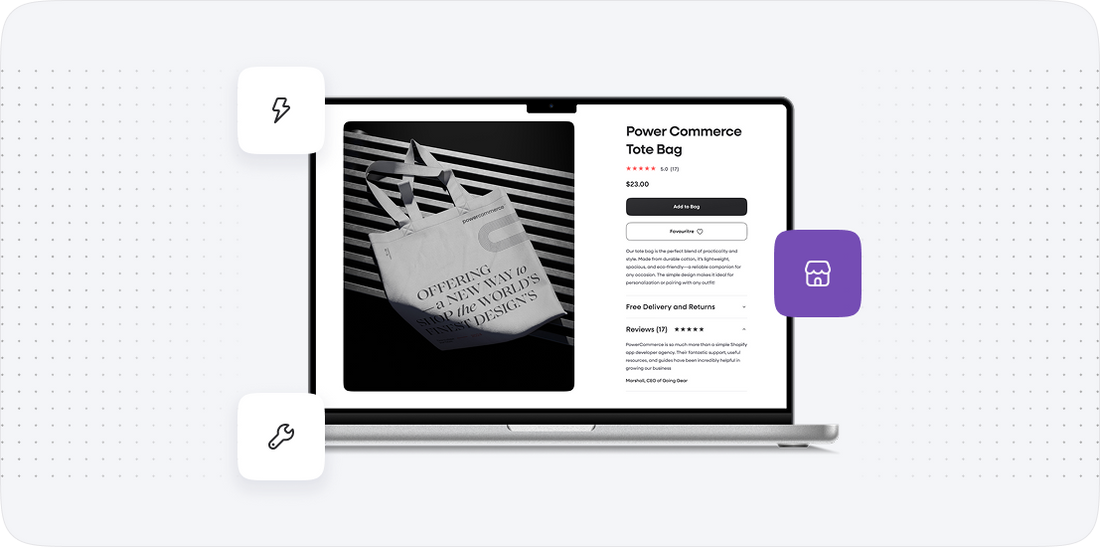
With your data successfully exported from BigCommerce, the next step involves setting up your new Imweb store. This includes configuring essential components such as product listings, payment options, and overall store design.
The objectives of this setup phase include:
- Importing products and categories into Imweb.
- Configuring payment gateways and shipping settings.
- Customizing the store layout and appearance to reflect your brand.
To effectively set up your Imweb store, follow these steps:
- Log into Imweb: Access your new Imweb account and navigate to the dashboard. Familiarize yourself with the layout and available features.
- Import Product Data: Use Imweb's import functionality to upload your product CSV file. Make sure to map the fields correctly to ensure all data is captured accurately.
- Set Up Payment Gateways: Navigate to the payment settings in Imweb and configure your desired payment gateways. This may include options like credit cards, PayPal, or local payment solutions.
- Configure Shipping Options: Set up your shipping settings, including rates, carriers, and delivery options. Ensure that these reflect your business's operational capabilities.
- Customize the Store Design: Utilize Imweb's design tools to customize your store's layout, colors, and branding. Make it visually appealing and user-friendly.
By the end of this step, your Imweb store should be ready to receive customer traffic. The careful setup of products, payment methods, and design will enhance the shopping experience for your customers.
Step 4: Testing Your Imweb Store
Once your Imweb store setup is complete, it is crucial to conduct comprehensive testing to ensure everything functions as intended. Testing is a critical safeguard against potential issues that could affect customer experience and overall store performance.
The primary goals in this testing phase include:
- Verifying product listings and details.
- Testing payment processing and transaction flows.
- Ensuring shipping options are correctly applied.
- Checking site navigation and usability.
To perform effective testing, follow these steps:
- Review Product Listings: Check each product to ensure that images, descriptions, and prices are displayed correctly. Assess the accuracy of inventory levels.
- Conduct Test Transactions: Simulate customer purchases by processing test transactions through your payment gateway. Confirm that payments are captured and orders are reflected in your order management system.
- Verify Shipping Calculations: Test different shipping scenarios to ensure that shipping costs are calculated accurately based on the customer's location and selected options.
- Assess User Experience: Navigate your store as a customer would. Check for ease of use, load times, and overall site performance. Make adjustments as necessary.
- Gather Feedback: If possible, have colleagues or friends test the site as well. Gather their feedback on usability and any issues they encounter.
Completing this thorough testing will ensure that your Imweb store is operationally sound and ready for launch, minimizing the risk of encountering problems once your customers start shopping.
Step 5: Launching Your Imweb Store
With testing complete and all functionalities confirmed, it’s time to launch your Imweb store. This step marks the official transition from BigCommerce to Imweb and involves communicating the change to your existing customers while ensuring they can easily access your new site.
The objectives of this launch phase include:
- Redirecting traffic from your old BigCommerce store to the new Imweb store.
- Informing existing customers about the migration and new features.
- Monitoring store performance post-launch.
To successfully launch your Imweb store, follow these steps:
- Set Up URL Redirects: Implement 301 redirects from your old BigCommerce URLs to your new Imweb URLs. This ensures that customers who visit old links are seamlessly redirected to the new store without losing traffic.
- Announce the Launch: Use email newsletters, social media, and your website to inform customers about the new store. Highlight any new features and improvements to encourage visits.
- Monitor Traffic and Sales: After launching, keep an eye on your analytics to track traffic and sales performance. Look for any issues that may arise and be ready to address them quickly.
- Provide Customer Support: Be prepared for customer inquiries related to the new store. Offer support to help customers navigate the new platform and answer any questions they may have.
By executing these launch strategies, you will ensure a smooth transition for your customers and set the stage for successful operations on Imweb.
Step 6: Post-Migration Optimization
Once your Imweb store is live, the focus shifts to optimization. This step is essential for ensuring that your store not only attracts traffic but also converts visitors into customers. Continuous monitoring and fine-tuning will help enhance user experience and improve overall performance.
The goals of this optimization phase include:
- Monitoring site analytics to assess traffic patterns and user behavior.
- Identifying areas for improvement in product listings, navigation, and checkout processes.
- Implementing SEO strategies to enhance visibility in search engines.
To effectively optimize your Imweb store, follow these steps:
- Analyze Traffic Data: Utilize Imweb’s analytics tools to review visitor statistics, including page views, bounce rates, and conversion rates. Identify high-performing pages and areas that may need improvement.
- Enhance Product Listings: Based on customer feedback and analytics, adjust product descriptions, images, and pricing as necessary. Ensure that product information is clear and compelling.
- Optimize Checkout Process: Review the checkout process to ensure it is smooth and user-friendly. Reduce the number of steps required to complete a purchase, and offer guest checkout options if possible.
- Implement SEO Best Practices: Optimize your site’s metadata, including title tags, meta descriptions, and alt text for images. Focus on relevant keywords to enhance organic search visibility.
- Gather Customer Feedback: Solicit feedback from customers regarding their shopping experience. Use surveys or follow-up emails to understand their needs and expectations.
By focusing on optimization post-migration, you will create a more engaging and efficient shopping experience for your customers, driving higher conversion rates and increased sales.
Step 7: Continuous Monitoring and Support
After the successful launch and optimization of your Imweb store, it’s important to establish a routine for ongoing monitoring and support. This step ensures that your store remains operational, efficient, and responsive to customer needs over time.
The objectives during this ongoing support phase include:
- Regularly monitoring site performance and analytics data.
- Keeping your store updated with the latest features and security measures.
- Providing continued customer support to enhance satisfaction and loyalty.
To effectively manage ongoing support for your Imweb store, follow these steps:
- Set Up Performance Monitoring: Utilize tools within Imweb to track key performance indicators (KPIs) such as load times, conversion rates, and customer feedback. Regularly review this data to identify trends and address any emerging issues.
- Stay Updated: Keep your store updated with the latest features offered by Imweb. This includes new integrations, payment options, and security patches. Regular updates help maintain the functionality and security of your store.
- Engage with Customers: Continue to engage with your customers through newsletters, surveys, and social media. Maintain an open line of communication to understand their needs and gather insights for future improvements.
- Plan for Growth: As your business evolves, ensure that your Imweb store scales accordingly. Monitor inventory levels, adjust marketing strategies, and be prepared to expand your product offerings as needed.
- Seek Professional Support: Consider partnering with experts or consultants who can provide insights and strategies for maximizing your store's potential on Imweb.
By prioritizing continuous monitoring and support, you will be well-equipped to adapt to changes in the ecommerce landscape, ensuring that your Imweb store remains a successful and competitive asset.
Power Your Step - Get in Touch
Power Your Step - Get in Touch
At PowerCommerce, we understand that migrating your online store is a significant step in your ecommerce journey. Our team of experts is here to ensure that your transition from BigCommerce to Imweb is seamless and tailored to your specific needs.
We are committed to helping you maximize the potential of your new Imweb store, offering ongoing support and optimization strategies that drive growth and enhance customer satisfaction. Don’t leave your migration to chance--partner with us for a smooth and successful transition!
If you’re ready to get started, here’s how you can reach us:
- Visit our contact page to fill out our inquiry form.
- Call us directly at 800-099-9090 for immediate assistance.
- Email us at [email protected] with any questions or to schedule a consultation.
We look forward to partnering with you and powering your ecommerce success!

Unlock dedicated support to shape an incredible future with solutions crafted for scale and innovation.
Let's WorkStay aligned on what's happening in the commerce world


Trusted by 1000+ innovative companies worldwide
Schedule Your Migration Today
For businesses prioritizing simplicity, scalability, and robust support, Shopify is the clear winner.
Looking to migrate without hassle? Power Commerce can handle the entire process, ensuring smooth data transfer, store setup, and post-launch success.
Marka Marulića 2, Sarajevo, 71000 BiH
[email protected]