








Tray commerce to Visualsoft
Migrating your store from Tray commerce to Visualsoft might seem daunting, but with proper planning and the right tools, it's a smooth process. Follow this step-by-step guide to ensure a successful transition.
Schedule a call
Step-by-Step Migration Guide: Tray Commerce to Visualsoft Migration Guide
Step 1: Preparation for Migration
In this step, we will prepare for the migration from Tray Commerce to Visualsoft by assessing current data and defining the scope of the migration.
Step 2: Data Backup and Security Checks
This step focuses on backing up your data and ensuring all necessary security protocols are in place before migration.
Step 3: Setting Up Visualsoft Environment
In this step, we will set up your new Visualsoft environment to receive the migrated data.
Step 4: Data Migration Process
This step focuses on executing the data migration from Tray Commerce to Visualsoft using either manual or automated methods.
Step 5: Post-Migration Data Verification
After migration, we will verify the integrity of the data and ensure all content has been transferred correctly.
Step 6: Finalizing the Migration
In this step, we will finalize the migration, ensuring that all systems are fully operational.
Step 7: Ongoing Support and Optimization
In this final migration step, we will establish ongoing support and optimization strategies for your new Visualsoft store.
Power Your Step - Get in Touch
Contact PowerCommerce today to ensure your ecommerce migration is seamless and successful.
Step 1: Preparation for Migration
Before we initiate the migration from Tray Commerce to Visualsoft, it is crucial to prepare adequately to ensure a seamless transition. This preparation phase involves several critical tasks, including assessing your current data, defining the migration scope, and establishing a timeline.
First, we will conduct a comprehensive audit of your existing ecommerce store on Tray Commerce. This involves reviewing the types of data that need to be migrated, such as product listings, customer information, order history, and any custom functionalities. Understanding the full scope of your current setup is vital for a successful migration.
- Data Audit: Identify all data types, including products, categories, customers, orders, and any associated metadata.
- Migration Scope: Decide what data is essential to migrate. For instance, you may choose to migrate only active products and customer accounts.
- Timeline Establishment: Create a realistic timeline for your migration process, including key milestones.
Also, ensure that you have backups for all your data before proceeding. This precaution will protect you against any data loss during the migration process.
Step 2: Data Backup and Security Checks
Data security is a paramount concern during any migration process. In this step, we will create backups of your existing data on Tray Commerce to prevent any loss during the transition to Visualsoft. We recommend using both local and cloud-based backup solutions to ensure redundancy.
To begin, we will perform the following actions:
- Backup Database: Export your entire database that includes products, customers, orders, and configuration settings. Use Tray Commerce’s export tools to create CSV or XML files.
- Backup Media Files: Collect all media files associated with your products, such as images, videos, and documents. This ensures that your storefront retains its visual integrity post-migration.
- Security Checks: Verify that your Tray Commerce account settings are secure. Ensure all user accounts have appropriate permissions and that sensitive information is stored securely.
Once the backups are completed and verified, store them securely until the migration to Visualsoft is fully executed.
Step 3: Setting Up Visualsoft Environment
With the data backed up, the next step is to set up your Visualsoft environment for a smooth migration. This involves creating your Visualsoft account, configuring basic settings, and preparing the platform to receive data.
Follow these steps to ensure your Visualsoft environment is ready:
- Create a Visualsoft Account: Sign up for a Visualsoft account if you haven’t already. Ensure the account is verified and operational.
- Basic Configuration: Configure essential settings such as payment gateways, shipping methods, and tax settings. This will help in maintaining the operational flow once data is migrated.
- Design Your Store: Choose a theme and customize it to reflect your brand identity. Visualsoft offers several customizable templates that can be tailored to your needs.
- Install Necessary Apps: Explore the Visualsoft app ecosystem and install any essential apps that will enhance the functionality of your store post-migration.
By completing this setup, you will create a conducive environment for data transfer and ensure that your new store is aligned with your business objectives.
Step 4: Data Migration Process
Now that your Visualsoft environment is set up, we can proceed with the actual data migration from Tray Commerce. Depending on your preferences, you can choose between a manual migration or utilizing automated migration tools.
For an automated migration, we will use a reliable migration tool that integrates with both Tray Commerce and Visualsoft. This method is typically faster and reduces the risk of errors. Here’s how we proceed:
- Select a Migration Tool: Choose a tool that specializes in migrating data between ecommerce platforms, ensuring it supports both Tray Commerce and Visualsoft.
- Connect Accounts: Follow the tool’s instructions to connect your Tray Commerce and Visualsoft accounts securely.
- Data Mapping: Carefully map data fields from Tray Commerce to Visualsoft. This includes ensuring that product categories, customer data, and order histories are correctly matched.
- Run Migration: Execute the migration process. Monitor the process for any errors and ensure that logs are generated for review.
If opting for a manual migration, you will export data from Tray Commerce in CSV format and import it into Visualsoft using its import functionalities. This method may take longer but allows for greater control over the data being moved.
Step 5: Post-Migration Data Verification
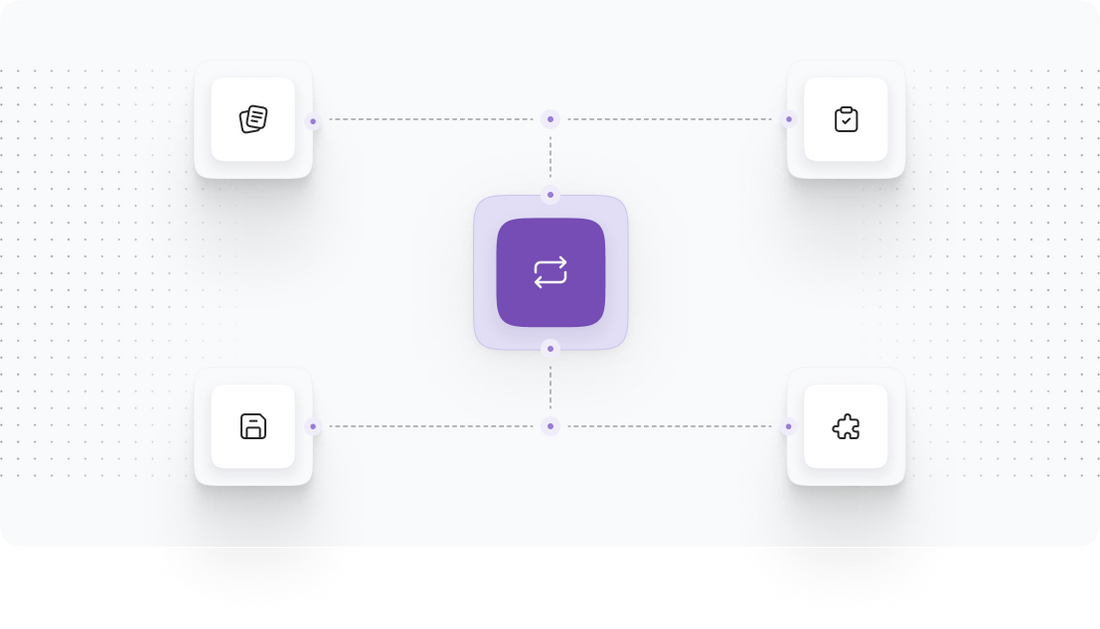
Once the migration process is complete, it is critical to verify the integrity and completeness of the migrated data. This verification process ensures that no data has been lost or corrupted during the migration.
To perform this verification, follow these steps:
- Conduct Data Audits: Review key areas such as product listings, customer accounts, and order history. Check for discrepancies in data such as missing items or incorrect information.
- Test Functionality: Ensure that all functionalities, such as payment processing, order fulfillment, and customer logins, are working as intended. This includes checking the integration of apps installed in Visualsoft.
- Customer Notifications: Communicate with your customers about the migration. Inform them of any changes in their account or how to access their information on the new platform.
Document any issues that arise during this phase and work to resolve them promptly to ensure a smooth user experience.
Step 6: Finalizing the Migration
With data verification complete, the next step is to finalize the migration process. This involves ensuring that everything is functioning correctly and preparing for the official launch of your Visualsoft store.
Here’s how to finalize the migration:
- Performance Testing: Conduct thorough testing of your website's performance. Check loading speeds, responsiveness, and the overall user experience.
- SEO Configuration: Ensure that SEO settings are correctly configured, including meta tags, redirects, and site maps. This helps maintain your search engine rankings post-migration.
- Backup New Data: Create a new backup of your Visualsoft environment to secure your newly migrated data before going live.
- Launch Store: Once everything is confirmed to be operational, officially launch your new Visualsoft store. Monitor user activities closely during the initial days.
Be prepared to address any immediate issues that may arise after launch, ensuring a smooth transition for your customers.
Step 7: Ongoing Support and Optimization
After launching your Visualsoft store, ongoing support and optimization are essential for maintaining performance and enhancing user experience. This step involves setting up systems for continuous improvement and addressing any emerging issues.
Consider the following actions:
- Monitor Analytics: Use Visualsoft’s analytics tools to monitor store performance, including traffic, sales conversions, and customer behavior. This data will inform your optimization strategies.
- Customer Feedback: Encourage customers to provide feedback on their shopping experience. Utilize surveys or feedback forms to collect insights that can guide improvements.
- Regular Updates: Keep your Visualsoft platform and any installed apps updated to ensure security and performance. Regular updates also introduce new features that can enhance your store.
- Support Channels: Establish clear support channels for customers to reach out with questions or issues. Provide timely responses to enhance customer satisfaction.
By implementing ongoing support and optimization strategies, your Visualsoft store will continue to thrive and adapt to changing market conditions.
Power Your Step - Get in Touch
At PowerCommerce, we are dedicated to providing the highest level of support during your migration journey from Tray Commerce to Visualsoft. Our team of experts is ready to assist you at every step of the process, ensuring that your transition is smooth, efficient, and tailored to your specific needs.
To take the next step in powering your ecommerce business, contact us today:
- Visit our contact form to reach out directly.
- Call us at 800-099-9090 for immediate assistance.
- Email us at [email protected] and we will respond promptly.
Don't delay in enhancing your digital commerce capabilities. Partner with PowerCommerce and experience the benefits of a seamlessly migrated ecommerce platform!

Unlock dedicated support to shape an incredible future with solutions crafted for scale and innovation.
Let's WorkStay aligned on what's happening in the commerce world


Trusted by 1000+ innovative companies worldwide
Schedule Your Migration Today
For businesses prioritizing simplicity, scalability, and robust support, Shopify is the clear winner.
Looking to migrate without hassle? Power Commerce can handle the entire process, ensuring smooth data transfer, store setup, and post-launch success.
Marka Marulića 2, Sarajevo, 71000 BiH
[email protected]