









Visualsoft to Idosell
Migrating your store from Visualsoft to Idosell might seem daunting, but with proper planning and the right tools, it's a smooth process. Follow this step-by-step guide to ensure a successful transition.
Schedule a call
Step-by-Step Migration Guide: Visualsoft to IdoSell Migration Guide
Step 1: Assessing Your Current Store Setup
In this first step, we will evaluate your existing Visualsoft store setup, including current features, integrations, and data structure to ensure a smooth migration to IdoSell.
Step 2: Data Backup and Export
In this step, we will secure a complete backup of your Visualsoft data to prevent any loss during the migration process.
Step 3: Preparing for Migration
In this step, we will prepare your Visualsoft data for migration, including mapping fields to IdoSell's structure and ensuring compatibility.
Step 4: Setting Up Your IdoSell Account
In this step, we will create your IdoSell account, configure initial settings, and prepare the platform for data import.
Step 5: Importing Data to IdoSell
In this step, we will import all previously prepared data from Visualsoft into IdoSell, ensuring accuracy and consistency.
Step 6: Optimizing Your IdoSell Store
Here, we will implement optimization strategies on your new IdoSell store to enhance performance and user experience.
Step 7: Testing and Launching Your New Store
In this final step, we will thoroughly test your new IdoSell store before the official launch, ensuring everything works flawlessly.
Power Your Step - Get in Touch
Contact PowerCommerce today for expert support in your migration journey from Visualsoft to IdoSell!
Step 1: Assessing Your Current Store Setup
To begin the migration process from Visualsoft to IdoSell, we must first conduct a comprehensive assessment of your current store setup. This assessment is vital as it provides insights into your existing features, integrations, and data structure, which directly influences the migration strategy.
We will start by auditing your Visualsoft account, focusing on key elements such as:
- Product Listings: Catalog all products, including categories, attributes, and pricing structures. This ensures that we can accurately replicate them on IdoSell.
- Customer Data: Export existing customer data, including contact information, order history, and loyalty program details to maintain continuity.
- Content Management: Review existing content such as blogs, promotional banners, and static pages to ensure they are migrated seamlessly.
- Integrations: Identify any third-party integrations currently in use, such as payment gateways, shipping solutions, and marketing tools.
- Analytics and Tracking: Note the analytics tools in use to ensure you can track performance metrics post-migration.
After evaluating these components, we will compile a detailed report outlining the findings and any areas that may require special attention during the migration process.
Step 2: Data Backup and Export
Before proceeding with the migration, it is crucial to secure a complete backup of your Visualsoft data. This step ensures that all your information is preserved in case of any unforeseen issues during the migration process.
We will follow these steps to back up your data:
- Export Product Data: Use Visualsoft's built-in export functionality to download product data, including all associated attributes such as pricing, inventory levels, and variants. Ensure that you export this data in a format compatible with IdoSell, typically CSV or XML.
- Backup Customer Data: Export customer information, including names, email addresses, and order histories. This is critical for maintaining customer relationships and facilitating a smooth transition.
- Save Content: Manually copy or export content from pages, blog posts, and other important information that resides within your Visualsoft store. This ensures you have a copy to reference or migrate to IdoSell.
- Backup Settings and Configurations: Document any custom settings or configurations within your Visualsoft store. This includes payment settings, shipping methods, and any custom scripts that may need to be replicated on IdoSell.
Once the backup is complete, store the data securely and verify its integrity to ensure that you have a reliable copy to work from during the migration to IdoSell.
Step 3: Preparing for Migration
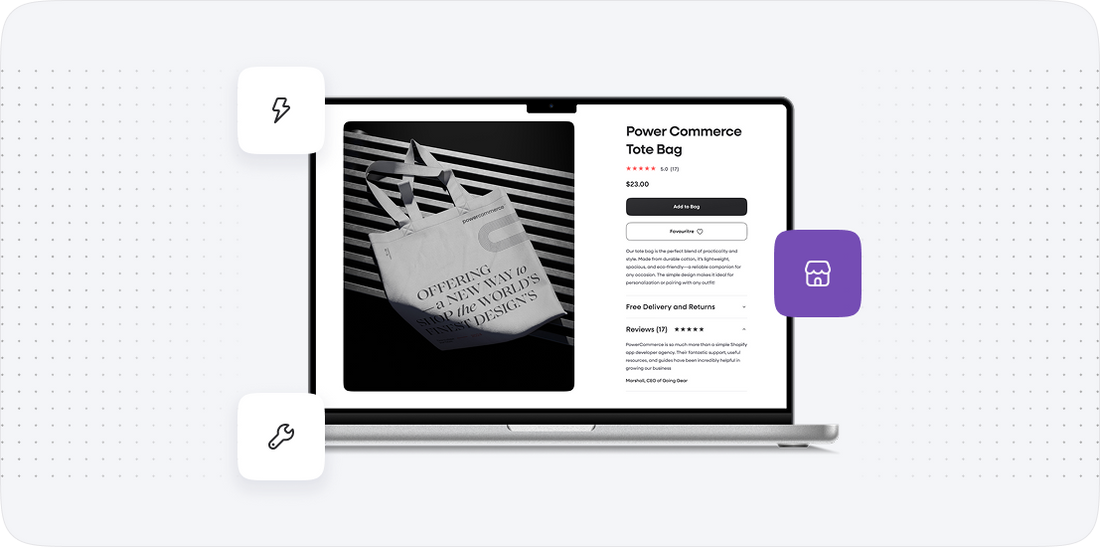
With your data backed up, the next step is to prepare it for migration to IdoSell. This involves mapping the data fields from Visualsoft to the equivalent fields in IdoSell, ensuring compatibility and accuracy in the transfer process.
The following procedures will guide us through this preparation:
- Field Mapping: Create a mapping document that outlines how each field in your Visualsoft data corresponds to fields in IdoSell. For example:
- Visualsoft Product Name -> IdoSell Product Title
- Visualsoft SKU -> IdoSell SKU
- Visualsoft Price -> IdoSell Price
- Data Cleaning: Review and clean your data to remove duplicates, correct inaccuracies, and ensure consistency. This step is essential for maintaining data integrity post-migration.
- Format Adjustment: Adjust the formats of data fields as necessary to meet IdoSell's requirements. This may include changing date formats, currency symbols, and other specifications.
- Integration Preparation: Identify and prepare any necessary integrations that will need to be set up on IdoSell. This includes payment gateways and shipping methods that were previously utilized in Visualsoft.
By the end of this step, we will have a well-organized set of data ready for seamless import into IdoSell.
Step 4: Setting Up Your IdoSell Account
Before importing your data, we need to set up your IdoSell account. This involves creating the account, configuring essential settings, and ensuring the platform is ready to accommodate the data being migrated from Visualsoft.
Here’s how we will proceed:
- Account Creation: Register for a new IdoSell account. Select the plan that best fits your business needs, considering factors such as expected traffic, product count, and required features.
- Initial Configuration: Configure basic settings in your IdoSell account, including:
- Store Name and URL
- Business Information (address, contact details)
- Currency and Language Settings
- Design Setup: Choose a template or theme that aligns with your brand. Customize it to reflect your visual identity, ensuring a cohesive brand experience for your customers.
- Payment Gateway Configuration: Set up your preferred payment gateways, ensuring they are compatible with IdoSell. This is essential for processing transactions post-migration.
- Shipping Settings: Configure shipping methods and rates based on your business model and customer needs. IdoSell offers various shipping options that can be tailored to your specifications.
After setting up your IdoSell account, we’ll conduct a thorough check to ensure all configurations are in place before proceeding with the data import.
Step 5: Importing Data to IdoSell
With your IdoSell account set up and configured, we will now import the prepared data from Visualsoft. This step is crucial as it brings your products, customers, and content into the new platform.
The import process will follow these steps:
- Product Import: Utilize IdoSell's data import feature to upload your product data. Ensure that the mappings we created in the previous steps are correctly applied during this import process.
- Customer Data Import: Import the customer data file, ensuring that all relevant information is accurately transferred, including order histories and account details.
- Content Migration: Manually add or import any content that was backed up, such as blog posts, promotional banners, and other essential site elements.
- Testing the Import: After the initial import, we will conduct tests to verify that all data has been accurately imported and is functioning correctly. This includes checking product visibility, customer accounts, and content display.
Once the import is complete and verified, we can move on to the next step of optimizing your store on IdoSell.
Step 6: Optimizing Your IdoSell Store
After successfully importing your data into IdoSell, the next step is to optimize your store for performance and user experience. This involves utilizing various features and tools available in IdoSell.
Optimization will include:
- SEO Optimization: Configure SEO settings for your products and pages, including meta titles, descriptions, and URL structures to enhance visibility in search engines.
- Performance Enhancements: Utilize IdoSell’s built-in tools to optimize loading times and enhance the overall performance of your online store.
- Mobile Responsiveness: Ensure that your store design is mobile-friendly, as a significant amount of traffic comes from mobile devices. Test the site on various mobile devices to guarantee a seamless experience.
- Customer Journey Enhancements: Implement features such as personalized recommendations, abandoned cart recovery tools, and customer reviews to enhance the shopping experience.
At this stage, we will also gather feedback from users and stakeholders to identify any additional areas for improvement.
Step 7: Testing and Launching Your New Store
Before launching your new IdoSell store, it is essential to conduct thorough testing to ensure everything functions as expected. This final step is crucial to avoid any disruptions once the store goes live.
Testing will involve:
- Functionality Testing: Verify that all features, including product searches, account logins, and checkout processes, are working correctly.
- Performance Testing: Assess the store’s loading speed and responsiveness under various traffic conditions to ensure it can handle expected customer volumes.
- Security Testing: Conduct security checks to confirm that all data is secure and that the site complies with necessary security standards.
- User Acceptance Testing (UAT): Involve a small group of users to navigate the site and provide feedback on their experience, identifying any potential issues before launch.
Once testing is complete and any necessary adjustments have been made, we are ready for the official launch of your IdoSell store!
Power Your Step - Get in Touch
Are you ready to take the next step in your ecommerce journey? Our team at PowerCommerce is here to assist you with a seamless migration from Visualsoft to IdoSell. With over 15 years of industry experience, we understand the complexities involved in transitioning between platforms and are committed to ensuring your migration is smooth and efficient.
Contact us today!
- Visit our contact page: Contact PowerCommerce
- Call us at: 800-099-9090
- Email us at: [email protected]
Let us help you empower your business with innovative ecommerce solutions!

Unlock dedicated support to shape an incredible future with solutions crafted for scale and innovation.
Let's WorkStay aligned on what's happening in the commerce world


Trusted by 1000+ innovative companies worldwide
Schedule Your Migration Today
For businesses prioritizing simplicity, scalability, and robust support, Shopify is the clear winner.
Looking to migrate without hassle? Power Commerce can handle the entire process, ensuring smooth data transfer, store setup, and post-launch success.
Marka Marulića 2, Sarajevo, 71000 BiH
[email protected]