






Bigcommerce to Shoper
Migrating your store from Bigcommerce to Shoper might seem daunting, but with proper planning and the right tools, it's a smooth process. Follow this step-by-step guide to ensure a successful transition.
Schedule a call
Step-by-Step Migration Guide: BigCommerce to Shoper migration guide
Step 1: Preparing for Migration
In this initial step, we focus on understanding the current BigCommerce store setup and preparing it for migration to Shoper. This includes assessing the data to be migrated and creating a comprehensive backup.
Step 2: Setting Up Your Shoper Account
In this step, we will set up a new account on Shoper, ensuring that all required configurations are correctly implemented for a seamless migration.
Step 3: Migrating Data from BigCommerce to Shoper
This step involves the actual migration of data, where we will utilize specialized tools to transfer products, customers, and orders from BigCommerce to Shoper.
Step 4: Configuring Shoper Settings
Post-migration, we will configure the Shoper settings to match your business needs and optimize the store for operations.
Step 5: Testing Your Shoper Store
In this step, we conduct thorough testing of the Shoper store to ensure that all functionalities work correctly and data has been transferred accurately.
Step 6: Launching Your Shoper Store
After successful testing, we are ready to launch your Shoper store, making it accessible to customers and live for transactions.
Step 7: Post-Launch Support and Optimization
In this final step, we outline the importance of post-launch support and continuous optimization to ensure the ongoing success of your Shoper store.
Power Your Step - Get in Touch
Ready to make your migration seamless? Contact PowerCommerce for expert support and guidance throughout your migration journey.
Step 1: Preparing for Migration
Before we initiate the migration process from BigCommerce to Shoper, it is crucial to prepare adequately to ensure a smooth transition. This step involves a thorough assessment of your current BigCommerce store, including all products, customer data, orders, and configurations that need to be transferred. By meticulously preparing, we can avoid losses and ensure that all vital information is captured during the migration.
The first objective is to create a backup of your existing BigCommerce store. This backup serves as a safety net, allowing us to revert to the previous setup in case of unforeseen issues during the migration process. We can utilize the built-in backup features of BigCommerce or manually export data for redundancy.
- Backup Your Data: Navigate to your BigCommerce dashboard and go to Advanced Settings > Data Backup. Follow the prompts to create a full backup of your store.
- Export Important Data: Export essential data such as product lists, customer information, and order history. This can be done by going to Products, Customers, and Orders sections, then utilizing the Export feature.
- Document Existing Configurations: Take note of your current settings, including payment gateways, shipping methods, and any customizations applied within BigCommerce.
Once we have completed these preparations, we can confidently move forward to the next step of the migration process.
Step 2: Setting Up Your Shoper Account
The next step in our migration process involves setting up your new Shoper account. This is a crucial phase where we will establish the foundational settings that will support your future operations. A well-configured Shoper account is vital for the successful import of data from BigCommerce and will ensure that your online store runs efficiently.
To start, we will create an account on the Shoper platform by visiting their website and selecting the appropriate subscription plan that meets your business needs. Shoper offers various pricing tiers, so it’s essential to choose one that aligns with your expected sales volume and business requirements.
- Visit Shoper's Website: Head to the Shoper homepage and click on the Sign Up button.
- Select a Plan: Review the available plans and select the one that best suits your business model. Consider factors such as product limits and transaction fees.
- Complete the Registration: Fill in the required information, including your email address, business name, and password. Confirm your email to activate your account.
Once your Shoper account is successfully set up, we will proceed to configure the essential settings necessary for migration.
Step 3: Migrating Data from BigCommerce to Shoper
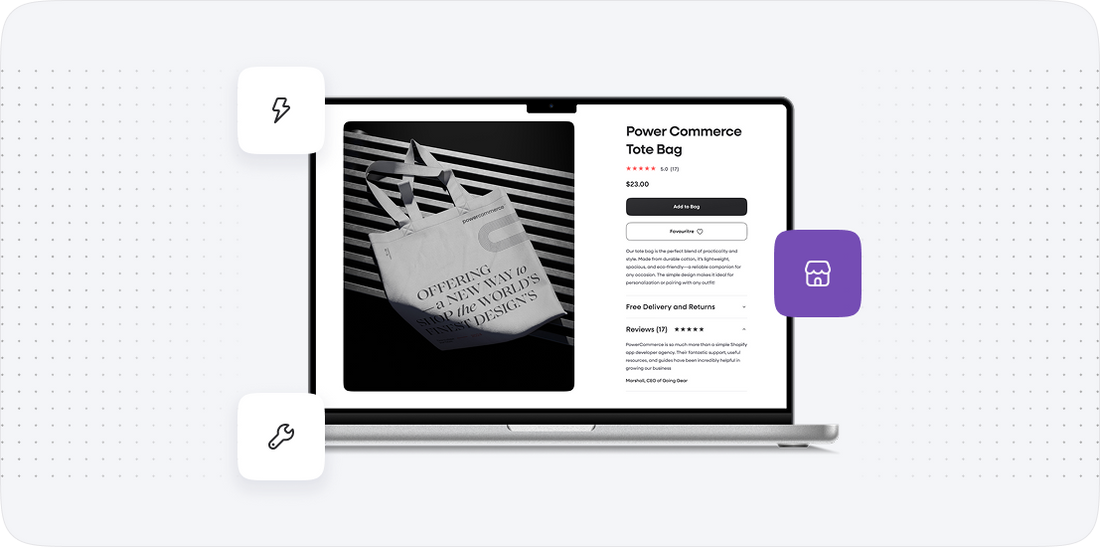
With our Shoper account now set up, we can move on to the core phase of the migration: transferring data from BigCommerce to Shoper. This step is critical as it involves the actual movement of your business data, including products, customer information, and order history. To facilitate this process, we will leverage migration tools that enable seamless data transfer while maintaining data integrity.
We recommend using Cart2Cart, a reliable migration service that automates the process and minimizes the risk of data loss. Here’s how we will proceed:
- Sign Up for Cart2Cart: Create an account on Cart2Cart if you haven't already. This tool will help facilitate the migration process efficiently.
- Connect BigCommerce and Shoper: In the Cart2Cart dashboard, select BigCommerce as your source cart and Shoper as your target cart. Follow the prompts to establish the connection between the two platforms.
- Select Data to Migrate: Choose the entities you wish to migrate, such as products, categories, customers, orders, and reviews. Ensure all necessary data is selected for a comprehensive migration.
After configuring the migration settings, we will initiate a demo migration to test the process. This allows us to identify any potential issues without affecting live data.
Once we verify that the demo migration is successful, we will proceed with the full migration. Monitor the migration progress via Cart2Cart, and once completed, we will validate the transferred data in Shoper.
Step 4: Configuring Shoper Settings
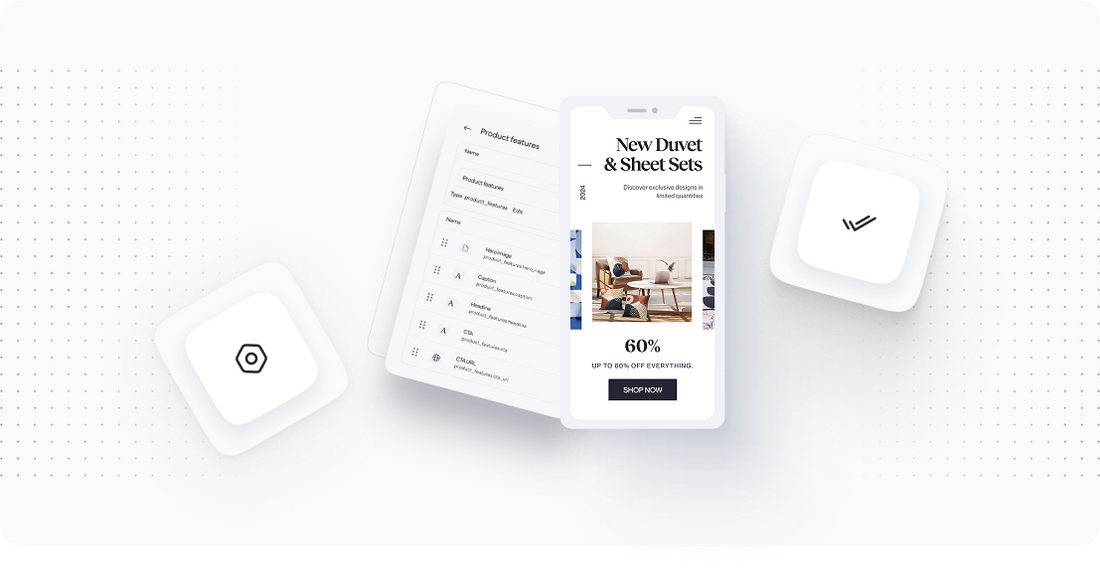
After successfully migrating your data from BigCommerce to Shoper, the next step is to configure the settings within your new Shoper account. This phase is essential as it ensures that your store operates according to your specific business requirements and preferences.
During this configuration process, we will focus on several key areas, including payment gateways, shipping methods, tax settings, and store design. Below is a detailed breakdown of the configuration process:
- Payment Gateways: Navigate to the Payment Settings section in Shoper. Choose the payment methods you wish to enable for your customers. Ensure that these options are compatible with your business model.
- Shipping Methods: Go to the Shipping Settings section. Configure your shipping options based on your target market. You can set flat rates, free shipping thresholds, or integrate with carriers.
- Tax Settings: Ensure that your tax rates are set up according to your local regulations. This can typically be done in the Tax Settings section of the admin panel.
- Store Design: Customize your store’s appearance by selecting themes and layouts that align with your brand identity. Use the drag-and-drop features to arrange your store layout as you desire.
Completing these configurations will prepare your Shoper store for a successful launch, allowing for a seamless customer experience.
Step 5: Testing Your Shoper Store
Once we have configured the settings in Shoper, it is essential to conduct a thorough testing phase. This step is crucial in identifying any issues that may have arisen during the migration or configuration process, ensuring that your store is fully operational before going live.
During testing, we will focus on the following areas:
- Data Verification: Review the migrated data, including products, customer accounts, and order histories. Ensure that all information is accurate and complete.
- Functionality Testing: Test all functionalities of the store, including the checkout process, payment processing, and customer account management. It’s crucial to ensure a smooth user experience.
- Performance Testing: Check the site speed and responsiveness. Load your store on various devices to ensure compatibility and optimal performance.
- SEO Settings Verification: Ensure that SEO settings and redirects are correctly configured. This is critical to maintain your search engine rankings after migration.
By conducting these tests, we can identify and fix any issues before the store is accessible to customers, ensuring a high-quality shopping experience from day one.
Step 6: Launching Your Shoper Store
With all preparations, configurations, and testing complete, we are now ready to launch your Shoper store. This step marks the culmination of our migration process and is a significant milestone for your business.
Before we officially launch, we will perform a final review of all settings and data to ensure everything is in order:
- Final Data Check: Conduct one last verification of the migrated data, ensuring that all products, customer information, and order histories are intact.
- Payment and Shipping Confirmation: Double-check that all payment gateways and shipping methods are functioning correctly. Run a few test transactions to confirm everything works as expected.
- SEO and Analytics Setup: Confirm that SEO settings are optimized and that analytics tools are integrated correctly to track performance post-launch.
After these final checks, we can make your store live by updating the domain settings and removing any maintenance mode that may be active. Notify your customer base about the new store and encourage them to explore the fresh design and enhanced features.
Step 7: Post-Launch Support and Optimization
Following the successful launch of your Shoper store, it is vital to implement ongoing support and optimization strategies to ensure sustained success. This step involves monitoring the performance of your store, addressing any post-launch issues, and continually optimizing for better results.
Here are critical actions to take during this phase:
- Monitor Performance: Use analytics tools to track visitor behavior, conversion rates, and sales performance. Identify any trends that may require adjustments in marketing or inventory.
- Customer Feedback: Solicit feedback from customers regarding their shopping experience. This information can provide valuable insights for potential improvements.
- Regular Updates: Keep your store updated with new products, promotions, and content. Regularly refresh your offerings to engage customers and encourage repeat visits.
- Technical Support: Maintain access to technical support through Shoper or your migration partner to address any issues that may arise post-launch swiftly.
By continuously optimizing your store and remaining responsive to customer needs, we can ensure that your Shoper store thrives in the competitive ecommerce landscape.
Power Your Step - Get in Touch
PowerCommerce is here to assist you with your migration from BigCommerce to Shoper, ensuring that the process is as smooth and efficient as possible. Our team of experts is dedicated to providing you with the support you need at every stage of your migration journey.
If you’re ready to take the next step, here’s how you can reach us:
- Visit our contact page to fill out our inquiry form.
- Call us directly at 800-099-9090 for immediate assistance.
- Email us at [email protected] to discuss your needs and get personalized guidance.
Partner with us at PowerCommerce to leverage our extensive experience in ecommerce migrations and ensure your business's success in the digital landscape.

Unlock dedicated support to shape an incredible future with solutions crafted for scale and innovation.
Let's WorkStay aligned on what's happening in the commerce world


Trusted by 1000+ innovative companies worldwide
Schedule Your Migration Today
For businesses prioritizing simplicity, scalability, and robust support, Shopify is the clear winner.
Looking to migrate without hassle? Power Commerce can handle the entire process, ensuring smooth data transfer, store setup, and post-launch success.
Marka Marulića 2, Sarajevo, 71000 BiH
[email protected]