






Craft commerce to Xpressengine
Migrating your store from Craft commerce to Xpressengine might seem daunting, but with proper planning and the right tools, it's a smooth process. Follow this step-by-step guide to ensure a successful transition.
Schedule a call
Craft Commerce to XpressEngine Migration Guide
Step 1: Preparation and Planning
In this step, we will outline the essential preparations needed for a successful migration from Craft Commerce to XpressEngine, including data inventory and technical requirements.
Step 2: Data Backup
This step focuses on securely backing up all data from Craft Commerce to prevent any loss during the migration process.
Step 3: Setting Up XpressEngine
In this step, we will guide you through installing and configuring XpressEngine to prepare for data import.
Step 4: Data Migration Strategy
This step will detail our systematic approach to migrating data from Craft Commerce to XpressEngine seamlessly.
Step 5: Data Import and Verification
This step involves importing the data into XpressEngine and verifying its accuracy and integrity.
Step 6: SEO and URL Structure
In this step, we will ensure that your SEO settings and URL structures are properly configured to maintain search engine rankings.
Step 7: Launch and Post-Migration Support
This final step covers launching the new XpressEngine site and ensuring ongoing support for any post-migration issues.
Power Your Step - Get in Touch
Contact PowerCommerce today to leverage our expert migration support for your Craft Commerce to XpressEngine transition.
Step 1: Preparation and Planning
Before initiating the migration from Craft Commerce to XpressEngine, it is crucial to prepare adequately. This step involves conducting a thorough assessment of your current Craft Commerce setup, including the products, customers, orders, and any custom functionalities that have been implemented. Proper planning is essential to ensure that no critical data is overlooked during the migration process.
The first objective is to create a complete inventory of the data you wish to migrate. This includes:
- Products: List all products along with their descriptions, prices, and any associated media (images, videos).
- Customer Data: Gather customer information including names, emails, addresses, and order history.
- Orders: Compile a record of all historical orders, including order statuses and payment details.
- Custom Functionalities: Document any bespoke features or integrations that have been developed within Craft Commerce.
Once you have compiled this inventory, the next step is to assess the technical requirements for XpressEngine. Check the hosting environment to ensure it meets the necessary specifications for running XpressEngine, which may differ significantly from Craft Commerce. Our team at PowerCommerce can assist in determining the best hosting solutions that align with your business needs.
Step 2: Data Backup
Backing up data is a non-negotiable step in the migration process. This precaution ensures that you have a complete copy of your data in case anything goes wrong during the migration. We recommend using multiple backup strategies:
- Database Backup: Utilize tools like phpMyAdmin or command-line tools to export your database in SQL format. This includes all tables related to products, orders, and customer information.
- File Backup: Download all files associated with your Craft Commerce installation, including media files, templates, and plugins. Tools like FTP clients can facilitate this process.
- Cloud Backup: Consider using cloud storage solutions for an additional layer of security. Services like Google Drive or Dropbox can be utilized to store your backups.
Once backups are complete, verify that the data is intact and accessible. This verification process is essential to ensure that the migration can proceed without any data integrity issues. We can offer assistance in performing these backups efficiently to streamline the process.
Step 3: Setting Up XpressEngine
After securing your data through backups, the next step is to set up XpressEngine. This involves both installation and configuration to ensure that it is ready to receive data from Craft Commerce. Here's how to proceed:
- Installation: Download the latest version of XpressEngine from the official website. Follow the installation instructions, which typically involve uploading files to your server and running the installation script via your browser.
- Configuration: Once installed, access the XpressEngine admin panel. Here, you will need to configure essential settings such as:
- Site Settings: Define your site name, logo, and other branding elements.
- Permalinks: Set up permalinks for SEO-friendly URLs.
- Payment Gateways: Integrate payment options that align with your business model.
- Shipping Settings: Configure shipping methods and rates based on your requirements.
- Theme Setup: Choose a theme that closely matches your brand and customize it to suit your needs. XpressEngine allows for extensive customization, enabling you to create a unique shopping experience for your customers.
By the end of this step, XpressEngine should be fully installed and configured, ready to accept data from Craft Commerce. Our team can assist in this configuration process to ensure that all settings are optimized for your business goals.
Step 4: Data Migration Strategy
Having set up XpressEngine, it is now essential to develop a clear data migration strategy. A systematic approach will ensure that all data from Craft Commerce is accurately transferred without any loss or corruption. Here’s how to execute this step effectively:
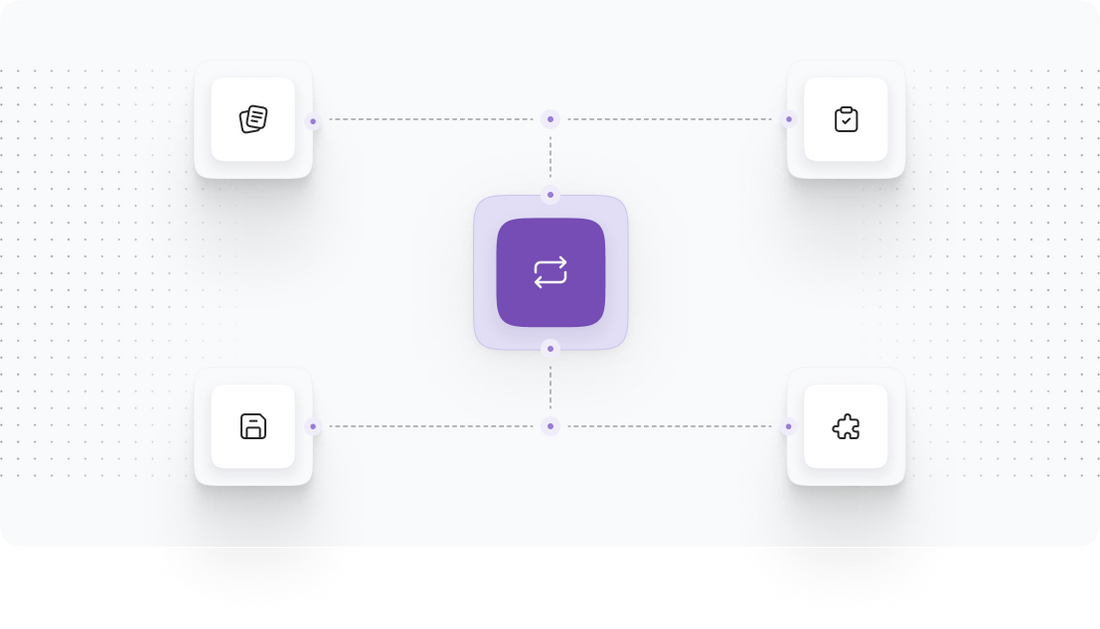
- Data Mapping: Create a mapping document that aligns the data fields from Craft Commerce to those in XpressEngine. This will include products, customers, and orders. For example:
- Craft Commerce Product ID → XpressEngine Product ID
- Craft Commerce Customer Email → XpressEngine User Email
- Craft Commerce Order Date → XpressEngine Transaction Date
- Data Transfer Tools: Utilize migration tools to facilitate data transfer. Depending on the complexity of your data, you might choose to use:
- Custom Scripts: Write scripts in PHP or other languages to read data from Craft Commerce and write it to XpressEngine.
- Third-Party Migration Tools: Consider tools like Cart2Cart that specialize in ecommerce migrations, ensuring a smooth transfer of data between platforms.
- Testing Migration: Before executing a full migration, conduct a test migration using a small subset of data. This will help identify any potential issues without affecting your live site.
Once the test migration is successful, you can proceed with the full data transfer. We at PowerCommerce offer specialized migration services to handle this process, ensuring accuracy and efficiency.
Step 5: Data Import and Verification
With your data migration strategy in place, the next critical step is the actual data import into XpressEngine. This process must be handled with care to ensure that all data is accurately transferred and functional. Here’s how to proceed:
- Executing Data Import: Using the chosen migration tool or custom scripts, initiate the data import process:
- For custom scripts, ensure that they correctly reference the mapping document created earlier.
- For third-party tools, follow their specific instructions to guide the import process.
- Post-Import Verification: Once the data is imported, conduct a thorough verification process:
- Check that all products are listed correctly with accurate descriptions, prices, and images.
- Verify customer accounts to ensure that emails and order histories have been transferred without loss.
- Test order placements to confirm that the checkout process functions as intended and all payment gateways are operational.
- Addressing Issues: If any discrepancies are found during verification, document them and address these issues promptly. This may involve re-importing specific datasets or making manual corrections.
This step is crucial for maintaining data integrity and ensuring a seamless transition for your customers. Our team is experienced in conducting these verifications and can assist in troubleshooting any issues that arise during this phase.
Step 6: SEO and URL Structure
Maintaining SEO rankings during the migration from Craft Commerce to XpressEngine is vital for preserving your online visibility. This step focuses on ensuring that your SEO settings and URL structures are correctly configured post-migration. Follow these procedures:
- URL Redirection: To avoid broken links, set up 301 redirects from the old Craft Commerce URLs to the new XpressEngine URLs. This preserves SEO equity and directs users to the correct pages. Utilize tools like:
- XpressEngine’s built-in redirection module
- Custom .htaccess rules (if applicable)
- SEO Metadata: Transfer all SEO metadata, including titles, descriptions, and keywords from Craft Commerce to XpressEngine. This can be facilitated by:
- Using migration tools that support SEO metadata transfer
- Manually entering this data into XpressEngine’s SEO settings
- Testing SEO Performance: After migration, monitor your site’s SEO performance using tools like Google Analytics and Google Search Console. Check for:
- Indexing issues
- Keyword rankings
- Traffic changes
By ensuring that your SEO settings are carried over and optimized, you can mitigate the risk of losing traffic post-migration. Our team can also assist in implementing these strategies for maximum effectiveness.
Step 7: Launch and Post-Migration Support
With the data successfully migrated and all configurations in place, it is time to launch your new XpressEngine site. This step involves careful preparation to ensure a smooth transition for your users:
- Final Review: Conduct a thorough review of the entire site to ensure everything functions as expected:
- Check all links, images, and functionalities.
- Test the checkout process to confirm payment and shipping methods are operational.
- Go Live: Set your new site to live status. Inform your customers about the transition and any new features they can expect.
- Post-Migration Support: Offer support to your users after the launch. This may include:
- Creating a feedback mechanism to collect user experiences.
- Providing customer support channels for any issues or questions that arise.
- Monitoring Performance: After launch, continue to monitor site performance closely. Use analytics tools to analyze traffic patterns and user behavior.
Our team at PowerCommerce is here to provide continuous support post-launch, ensuring that any issues are addressed promptly and that your XpressEngine platform continues to meet your business objectives.
Power Your Step - Get in Touch
Are you ready to take your ecommerce platform to new heights? At PowerCommerce, we specialize in seamless migrations from Craft Commerce to XpressEngine, ensuring a smooth transition that minimizes downtime and maximizes performance.
Don’t wait! Get in touch with our expert team today to discuss your migration needs and discover how we can tailor our services to fit your business. Here’s how to reach us:
- Visit our contact page to fill out our inquiry form.
- Call us directly at 800-099-9090.
- Email us at [email protected] for any questions or detailed discussions.
Let PowerCommerce empower your next step in ecommerce success!

Unlock dedicated support to shape an incredible future with solutions crafted for scale and innovation.
Let's WorkStay aligned on what's happening in the commerce world


Trusted by 1000+ innovative companies worldwide
Schedule Your Migration Today
For businesses prioritizing simplicity, scalability, and robust support, Shopify is the clear winner.
Looking to migrate without hassle? Power Commerce can handle the entire process, ensuring smooth data transfer, store setup, and post-launch success.
Marka Marulića 2, Sarajevo, 71000 BiH
[email protected]