






Imweb to Craft commerce
Migrating your store from Imweb to Craft commerce might seem daunting, but with proper planning and the right tools, it's a smooth process. Follow this step-by-step guide to ensure a successful transition.
Schedule a call
Step-by-Step Migration Guide: Imweb to Craft Commerce migration guide
Step 1: Data Backup and Preparation
Before initiating the migration from Imweb to Craft Commerce, we emphasize the importance of conducting a comprehensive backup of all essential store data to ensure no information is lost during the transfer process.
Step 2: Setting Up Your Craft Commerce Environment
In this step, we guide you through the initial setup of your Craft Commerce environment, ensuring that it is configured to meet your business needs before importing data.
Step 3: Importing Product Data
Now that we’ve set up Craft Commerce, it's time to import product data from Imweb, ensuring all product details are accurately transferred to your new store.
Step 4: Migrating Customer Data
In this step, we will migrate your customer data to Craft Commerce, ensuring that all customer information is retained for a seamless shopping experience.
Step 5: Transferring Order History
In this step, we will transfer the order history from Imweb to Craft Commerce, allowing you to maintain a complete view of past transactions.
Step 6: Setting Up Payment Gateways
This step involves configuring payment gateways in Craft Commerce, ensuring that your store can securely process transactions efficiently.
Step 7: Finalizing Store Settings and Testing
In the final pre-launch step, we will finalize your store settings and conduct thorough testing to ensure everything is functioning as intended.
Power Your Step - Get in Touch
Ready to elevate your ecommerce experience? Contact PowerCommerce today for expert migration support and comprehensive solutions tailored to your business.
Step 1: Data Backup and Preparation
In this first step, we focus on ensuring that your data is secure and ready for transfer. Proper data backup is crucial as it safeguards your business information and prevents potential data loss during the migration process. A thorough backup not only acts as a safety net but also allows for a smoother transition to your new platform.
We recommend performing backups of the following data types:
- Product Data: Export all product details including names, descriptions, prices, and images. This can typically be done through a CSV export feature in your current Imweb platform.
- Customer Data: Ensure you have a backup of customer information, including names, email addresses, and purchase history. This data is vital for maintaining customer relationships post-migration.
- Order History: Retaining past order data will help in providing excellent customer service even after the migration is complete.
Once you have backed up the above data, it’s important to verify the integrity of the files to ensure they have been correctly exported. We advise checking for completeness and accuracy in the backup files before proceeding to the next step.
Step 2: Setting Up Your Craft Commerce Environment
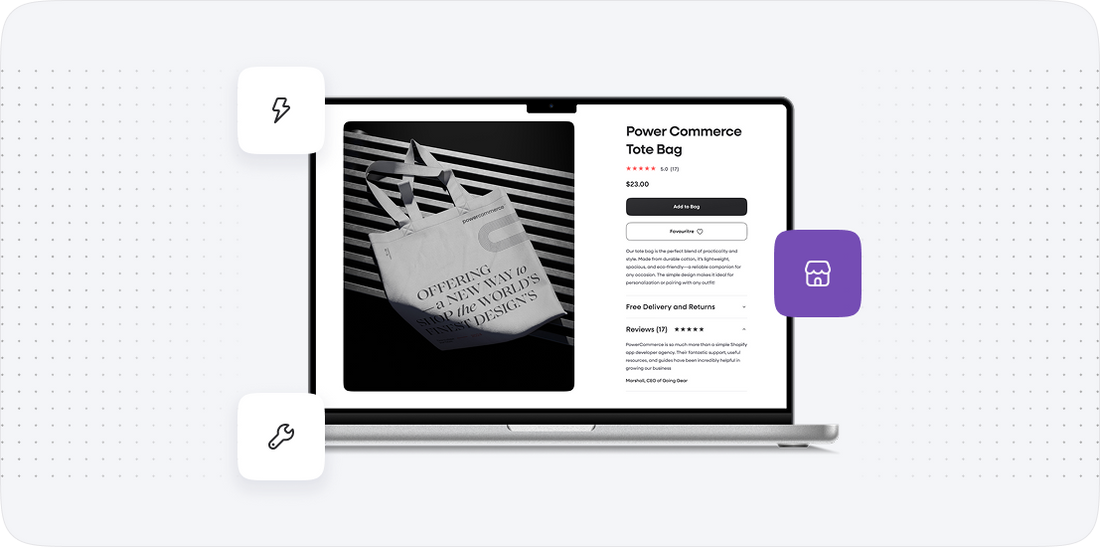
Now that we have secured our data backup, the next step is to set up your Craft Commerce environment. This involves creating a new account in Craft Commerce and configuring the basic settings to tailor the platform to your business requirements.
Here's how to proceed:
- Create an Account: Visit the Craft Commerce website and sign up for a new account. Choose a pricing plan that fits your business size and expected growth.
- Install Craft CMS: Follow the provided installation instructions to set up Craft CMS. Make sure your hosting is configured and ready to support Craft's requirements.
- Basic Configuration: Once installed, access the control panel and configure essential settings such as:
- Store name and description
- Currency settings
- Tax rates and shipping methods
- Payment gateways
- Design & Theming: Choose a theme that aligns with your brand. Craft Commerce allows extensive customization, so feel free to adjust the layout and design to fit your vision.
By the end of this step, your Craft Commerce store should be set up and ready to accept data imports from Imweb.
Step 3: Importing Product Data
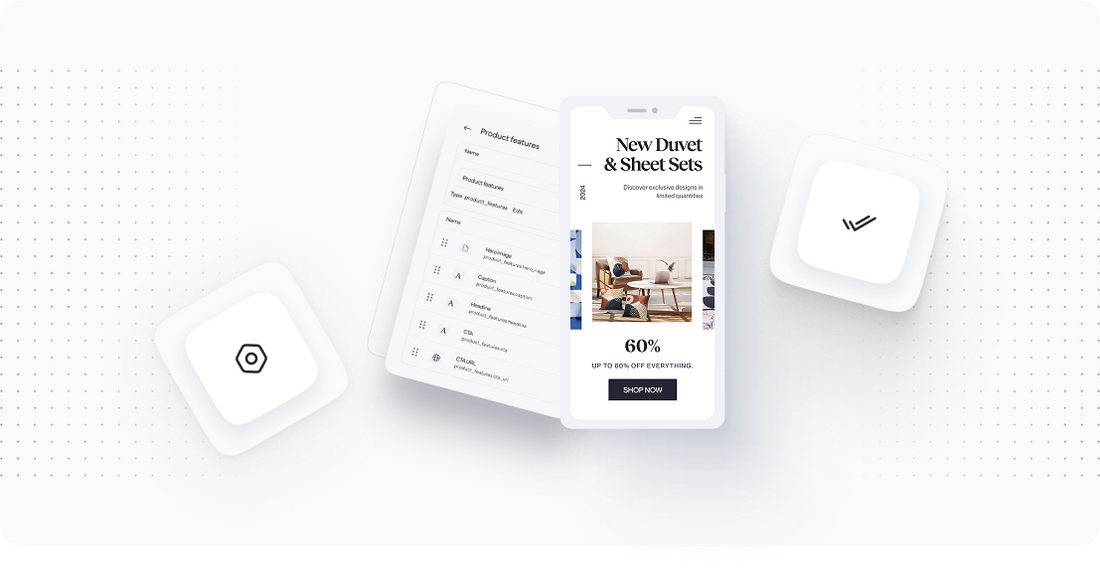
With the Craft Commerce environment ready, we can begin importing your product data. This step is critical as it determines how your products will be displayed on the new platform.
Follow these steps to import your product data:
- Prepare Your CSV File: Using the backup from Imweb, ensure that your CSV file adheres to Craft Commerce's import requirements. This includes having the correct headers for product names, descriptions, prices, categories, and images.
- Access the Import Tool: In the Craft Commerce admin panel, navigate to the product section and locate the import tool. This tool will facilitate the uploading of your CSV file.
- Upload the CSV File: Select your prepared CSV file and initiate the import process. Craft Commerce will parse the data, creating new product entries based on the information provided.
- Verify Imported Data: After the import, review the product listings in Craft Commerce. Check for accuracy in product details, images, and categorization. Ensure that all products have been imported without errors.
Once you are satisfied with the product data import, we can move on to importing customer data in the next step.
Step 4: Migrating Customer Data
After successfully importing your product data, the next phase is to transfer your customer data from Imweb to Craft Commerce. Preserving customer information is vital for ongoing communication and historical context.
To migrate your customer data, follow these steps:
- Export Customer Data: From your Imweb backup, extract customer data in the required format. Ensure this includes names, emails, addresses, and any relevant purchase history.
- Format for Craft Commerce: Adjust the exported data to match the import requirements for Craft Commerce. This typically involves ensuring that all necessary fields are correctly labeled and formatted.
- Use the Import Tool: Similar to the product data import, navigate to the customer section in Craft Commerce and access the import tool. Choose your formatted CSV file for customer data.
- Begin the Import: Execute the import process and monitor for any errors or issues that may arise during the migration of customer data.
- Check Customer Profiles: After the import, review the customer records in Craft Commerce. Ensure that all details are complete and accurate, as this information is essential for future communications and transactions.
With customer data successfully migrated, we can now proceed to handle order history in the next step.
Step 5: Transferring Order History
Maintaining a record of past orders is essential for providing quality customer service and insights into sales trends. In this step, we will focus on importing your order history from Imweb to Craft Commerce.
Here’s how to proceed:
- Extract Order Data: From your Imweb backup, extract all relevant order history data. This should include order IDs, customer details, product details, order dates, and status.
- Format the Data: Ensure the order data is formatted correctly for Craft Commerce, aligning with the import specifications necessary for successful integration.
- Navigate to the Order Section: In Craft Commerce, find the order management section, and access the import tool.
- Upload the Order CSV: Select your formatted order history CSV and initiate the import process. Monitor the system for any errors during the upload.
- Verify Orders: Post-import, check the order history in Craft Commerce to confirm that all past transactions have been accurately recorded, including customer and product details.
Completing this step will ensure you have a complete transaction history, which is vital for customer support and business analysis.
Step 6: Setting Up Payment Gateways
With all critical data successfully migrated, we now need to set up your payment gateways in Craft Commerce. This is essential to ensure that your customers can make purchases seamlessly and securely.
To set up payment gateways, follow these steps:
- Select Payment Methods: Determine which payment methods you wish to offer (e.g., credit cards, PayPal, etc.). Craft Commerce supports various popular gateways.
- Access Payment Settings: In the Craft Commerce admin panel, navigate to the settings section for payment gateways. This is where you can add new payment methods.
- Configure Each Gateway: For each payment method selected, enter the necessary credentials and settings. This may include API keys, secret keys, and other authentication details required by the payment provider.
- Test Payment Processing: Once configured, perform test transactions to ensure that each payment method functions correctly. This step is vital to identify any issues before your store goes live.
By the end of this step, your payment gateways should be fully operational, enabling secure transactions for your customers.
Step 7: Finalizing Store Settings and Testing
Before launching your new Craft Commerce store, it is essential to finalize all settings and thoroughly test the functionality of your site. This ensures that everything is operating smoothly for your customers.
Here’s how to approach this final step:
- Review Store Settings: Go through all your store settings in Craft Commerce, including shipping options, tax settings, and customer notifications. Ensure everything is configured according to your business requirements.
- Conduct Functional Testing: Test all aspects of your store, including:
- Product browsing and filtering
- Shopping cart functionality
- Checkout process
- Payment processing
- Customer account creation and management
- Check for Mobile Optimization: Ensure your store is fully responsive and optimized for mobile devices, as a significant portion of ecommerce traffic comes from mobile users.
- Launch a Test Campaign: Consider running a small marketing campaign to test the waters and gather feedback from real customers.
Completing this step will prepare your store for a successful launch, ensuring that all systems are go for your customers.
Power Your Step - Get in Touch
At PowerCommerce, we understand that migrating your ecommerce platform is a crucial step in your business journey. Our team of experts is here to guide you through every phase of your migration from Imweb to Craft Commerce, ensuring a seamless transition with minimal disruption to your operations.
Why choose PowerCommerce? Our commitment to innovation, scalability, and customer-centric service means that we provide not just a migration service, but a partnership that can help drive your business growth.
- Contact Us: Reach out to us directly through our contact form for personalized assistance.
- Call Us: For immediate support, call us at 800-099-9090.
- Email Us: Alternatively, you can email us at [email protected] with your inquiries or to schedule a consultation.
Let us help you power your ecommerce success with our tailored solutions and expertise. We look forward to working with you!

Unlock dedicated support to shape an incredible future with solutions crafted for scale and innovation.
Let's WorkStay aligned on what's happening in the commerce world


Trusted by 1000+ innovative companies worldwide
Schedule Your Migration Today
For businesses prioritizing simplicity, scalability, and robust support, Shopify is the clear winner.
Looking to migrate without hassle? Power Commerce can handle the entire process, ensuring smooth data transfer, store setup, and post-launch success.
Marka Marulića 2, Sarajevo, 71000 BiH
[email protected]