






Unas to Webflow
Migrating your store from Unas to Webflow might seem daunting, but with proper planning and the right tools, it's a smooth process. Follow this step-by-step guide to ensure a successful transition.
Schedule a call
Step-by-Step Migration Guide: Unas to Webflow Migration Guide
Step 1: Backup Your Unas Store Data
Before initiating the migration to Webflow, it's crucial to create a comprehensive backup of your Unas store data. This step safeguards your business information and ensures a seamless transition.
Step 2: Assess Your Current Store Functionality
Understanding your current store's functionality is critical for a successful migration. This step involves evaluating the features and integrations you rely on.
Step 3: Migrate Your Data to Webflow
Data migration is a crucial step in the process where we transfer your backed-up data from Unas to Webflow, ensuring all relevant information is accurately captured.
Step 4: Rebuild Your Store Design in Webflow
Recreating your store's design in Webflow is essential for maintaining brand consistency and enhancing user experience.
Step 5: Implement SEO Best Practices
Optimizing your new Webflow site for SEO is essential for maintaining visibility and traffic post-migration.
Step 6: Integrate Third-Party Tools and Apps
Integrating the necessary third-party tools and apps enhances your Webflow store’s functionality and user experience.
Step 7: Quality Assurance and Testing
Conducting thorough quality assurance and testing is essential to ensure your new Webflow site functions correctly and meets performance standards.
Power Your Step - Get in Touch
Ready to make your migration to Webflow seamless and efficient? Contact our team at PowerCommerce today!
Step 1: Backup Your Unas Store Data
In the first step of our migration process, we prioritize the backup of your existing Unas store data. This is essential for preventing data loss and ensuring a smooth transition to Webflow. A robust backup strategy encompasses various types of data, including products, customer information, orders, and website settings.
To perform a complete backup, follow these guidelines:
- Log into your Unas admin panel and navigate to the settings section.
- Utilize the export functionality available within the platform to download your product data. This typically includes details such as product names, descriptions, prices, images, and SKU numbers.
- Download customer data, ensuring you have access to their contact details and order histories. This is often available under the 'Customers' section.
- Export any additional data you deem necessary, such as promotional materials, blog posts, and site settings. This could also include images and files stored in your media library.
It’s recommended to save these files in a secure location, such as cloud storage or a dedicated backup drive, to ensure they are easily accessible during the migration process.
By completing this step, we can ensure that all necessary information is preserved, allowing for a seamless migration to Webflow.
Step 2: Assess Your Current Store Functionality
In this phase, we conduct a thorough assessment of your existing Unas store's functionality. Identifying the features and integrations that are currently in use allows us to replicate or enhance these capabilities in Webflow.
The assessment should cover the following:
- Inventory Management: Evaluate how you manage your inventory in Unas. Identify any special features like multi-channel selling, stock level alerts, or product variations that need to be replicated.
- Payment Gateways: Take note of the payment gateways currently integrated into your store. Ensure that Webflow supports these options or find alternatives that meet your business needs.
- Shipping Options: Document the shipping methods you offer, including carriers and rates. This will help us set up the same or improved shipping options in Webflow.
- Customer Management: Review how you handle customer data, including segmentation, loyalty programs, and communication strategies.
- Analytics and Reporting: Identify the metrics and reports you currently use to gauge performance. This information will guide the setup of your analytics in Webflow.
By understanding the existing functionalities, we can ensure that your new Webflow store not only replicates but potentially enhances your current operations.
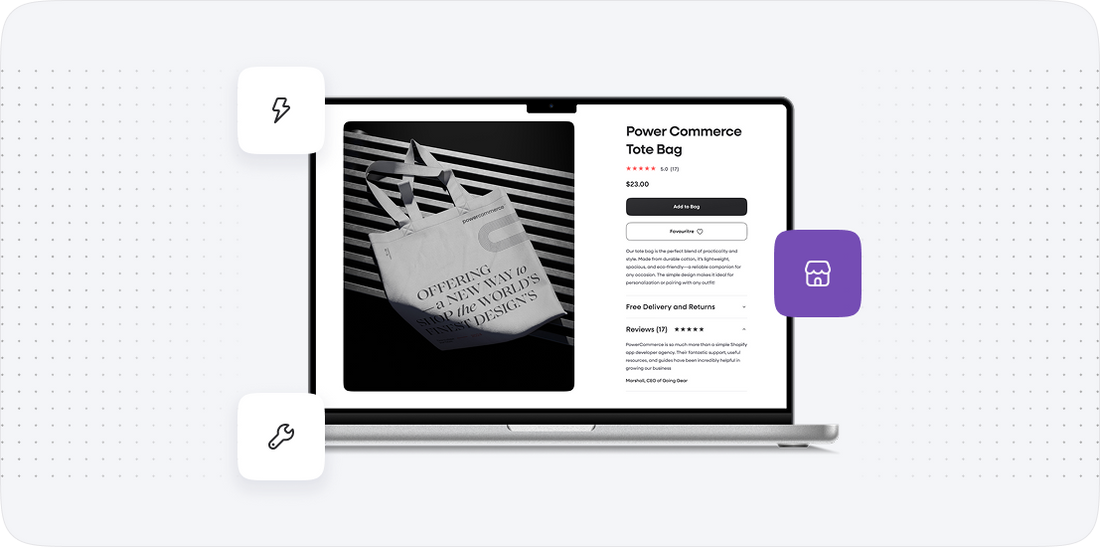
Step 3: Migrate Your Data to Webflow
Once we have backed up your Unas data and assessed the necessary functionalities, we move on to the actual migration of data to Webflow. This step is vital for ensuring all your products, customer data, and other essential information are transferred without loss.
To execute the migration, we follow these steps:
- Prepare Your Webflow Account: Ensure that your new Webflow account is set up and ready for data import. This includes selecting the appropriate plan that aligns with your expected traffic and data needs.
- Data Import: Use Webflow's CMS import tools to upload the product and customer data. This may involve formatting your CSV files to match Webflow's requirements for successful import.
- Testing Data Integrity: After the import, we conduct a thorough check to ensure that all data has been imported correctly. This includes verifying product details, images, pricing, and customer information.
- Addressing Errors: In the event of discrepancies or errors during the import, we will troubleshoot by checking the original files and adjusting any mismatches in Webflow.
This step is critical as it lays the foundation for your new Webflow store, ensuring all vital information is at your disposal for a successful launch.
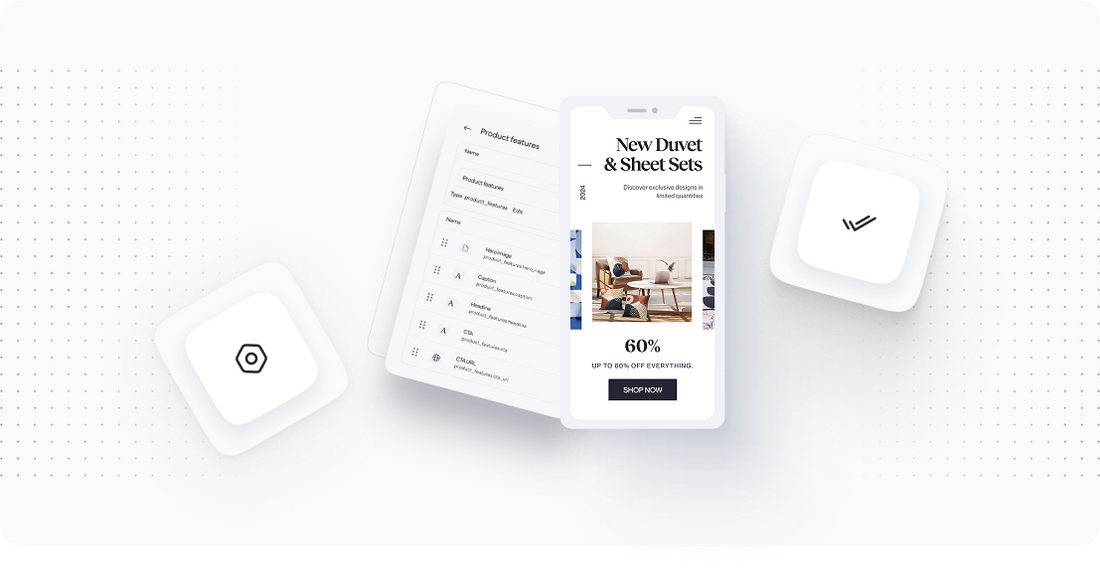
Step 4: Rebuild Your Store Design in Webflow
Now that we have successfully migrated your data, the next step is to rebuild your store’s design in Webflow. This is a crucial step as it ensures that your new website maintains the look and feel of your brand while leveraging Webflow's advanced design capabilities.
Here’s how we approach the design phase:
- Select a Template: Begin by choosing a Webflow template that closely resembles your current store layout. Alternatively, we can design from scratch to ensure a unique brand representation.
- Customize the Design: Utilize Webflow's powerful design tools to customize your template. This can include adjusting color schemes, typography, and layout elements to align with your brand guidelines.
- Responsive Design: Ensure that the design is responsive, meaning it should look great on all devices, including desktops, tablets, and smartphones. Utilize Webflow’s responsive design features to accomplish this.
- Add Interactive Elements: Take advantage of Webflow’s capabilities to add animations and interactions that enhance user engagement and provide a modern shopping experience.
- Test the Design: Before finalizing, test the design on multiple devices and browsers to ensure compatibility and performance.
This step is vital for creating an engaging and user-friendly experience that will resonate with your customers.
Step 5: Implement SEO Best Practices
As we move forward, it's imperative to implement SEO best practices in your new Webflow store. This ensures that your site remains visible on search engines and that you retain any existing traffic from your previous store.
Here’s how we can enhance your site’s SEO:
- Set Up Metadata: Input SEO titles and descriptions for each product and page to improve visibility in search results. Ensure that these are relevant and include target keywords.
- Optimize URLs: Maintain a clean URL structure that is easy to read and relevant to the content. If possible, retain the same URLs from your Unas store to preserve SEO equity.
- Image Optimization: Use descriptive filenames and alt text for all images to enhance visibility and accessibility. This can also improve your rankings in image searches.
- Implement Redirects: If any URLs have changed during migration, set up 301 redirects to guide users and search engines to the new URLs. This is crucial for preserving SEO authority.
- Submit Sitemaps: Generate and submit your XML sitemap to search engines to facilitate better indexing of your new site.
By following these SEO strategies, we aim to sustain and improve your site's visibility, ensuring a smooth transition without loss of traffic.
Step 6: Integrate Third-Party Tools and Apps
With your store design and SEO in place, the next step is to integrate any essential third-party tools and applications that enhance functionality and improve user experience. Webflow offers a robust ecosystem of integrations that can streamline operations.
Here’s how we proceed with integration:
- Identify Necessary Tools: List all the third-party tools currently in use, such as email marketing platforms, analytics tools, and inventory management systems.
- Use Webflow Integrations: Leverage Webflow’s built-in integrations to connect with apps like Mailchimp, Google Analytics, and social media platforms to automate tasks and gather insights.
- Custom Integrations: For tools that do not have direct integrations, we can utilize Webflow’s API or embed custom code to ensure seamless functionality.
- Test Integrations: After integration, conduct thorough testing to ensure that all tools are functioning properly and providing the expected results.
This step is crucial for enhancing the overall performance of your Webflow store and ensuring that all necessary functionalities are in place.
Step 7: Quality Assurance and Testing
Before launching your new Webflow store, it’s critical to conduct comprehensive quality assurance (QA) and testing. This process ensures that every aspect of your site functions as intended and meets the expectations of both you and your customers.
Here’s how we perform QA and testing:
- Functional Testing: Test all functionalities of your site, including navigation, links, forms, and checkout processes. Ensure that everything works correctly on all device types.
- Performance Testing: Evaluate the loading speed and responsiveness of your site. Utilize tools like Google PageSpeed Insights to identify areas for improvement.
- Cross-Browser Testing: Check how your site displays on different browsers (Chrome, Firefox, Safari, etc.) and devices (mobile, tablet, desktop) to ensure consistency.
- User Testing: If possible, conduct user testing with real customers to gather feedback on usability and overall experience. This can provide valuable insights into potential improvements.
- Final Adjustments: Use the feedback and test results to make any final adjustments before launch.
By ensuring everything is functioning correctly, we set the stage for a successful launch, minimizing potential issues and maximizing user satisfaction.
Power Your Step - Get in Touch
At PowerCommerce, we understand that migrating your ecommerce platform is a significant step. Our team is equipped with the expertise and tools to ensure your transition from Unas to Webflow is smooth and efficient. We prioritize your business needs and work diligently to minimize downtime while maximizing your store’s performance.
Here’s how you can get in touch with us:
- Visit our contact form to fill out your details and inquiry.
- Call us directly at 800-099-9090 for immediate assistance.
- Email us at [email protected] to discuss your migration needs and how we can assist you.
Don’t wait--partner with us to unlock the full potential of your ecommerce site on Webflow and ensure a successful migration experience today!

Unlock dedicated support to shape an incredible future with solutions crafted for scale and innovation.
Let's WorkStay aligned on what's happening in the commerce world


Trusted by 1000+ innovative companies worldwide
Schedule Your Migration Today
For businesses prioritizing simplicity, scalability, and robust support, Shopify is the clear winner.
Looking to migrate without hassle? Power Commerce can handle the entire process, ensuring smooth data transfer, store setup, and post-launch success.
Marka Marulića 2, Sarajevo, 71000 BiH
[email protected]