






Webflow to Unas
Migrating your store from Webflow to Unas might seem daunting, but with proper planning and the right tools, it's a smooth process. Follow this step-by-step guide to ensure a successful transition.
Schedule a call
Step-by-Step Migration Guide: Webflow to Unas Migration Guide
Step 1: Backup Your Webflow Site
In this step, we will secure a complete backup of your Webflow site, ensuring that all critical data is preserved before initiating the migration to Unas.
Step 2: Evaluate Your Current Site Functionality
Assessing your existing site functionality is essential to identify what features need to be replicated on Unas, ensuring a smooth transition with no loss of capabilities.
Step 3: Data Migration Process
In this step, we will focus on migrating your product, customer, and order data from Webflow to Unas, ensuring data integrity and accuracy throughout the process.
Step 4: URL Structure and Redirects
Establishing a proper URL structure and implementing redirects is crucial for maintaining SEO rankings and user experience during the migration to Unas.
Step 5: SEO Configuration
In this step, we will configure SEO settings on Unas, including metadata, sitemaps, and optimization strategies to maintain visibility and rankings in search engines.
Step 6: Design and User Experience Enhancements
This step focuses on recreating and enhancing your site's design and user experience on Unas, leveraging its features for a more engaging customer journey.
Step 7: Quality Assurance and Testing
Conducting thorough testing and quality assurance is essential to identify and resolve any issues before launching your Unas site to the public.
Power Your Step - Get in Touch
Contact PowerCommerce today to leverage our expertise for a seamless migration to Unas, ensuring your ecommerce success.
Step 1: Backup Your Webflow Site
Before conducting any migration, it is paramount to create a comprehensive backup of your current Webflow site. This step safeguards your data against loss during the transition process. The backup should include all essential components such as website content, product data, and media files. By ensuring that you have a reliable copy of your site, you can confidently proceed with the migration knowing you can revert to the original state if needed.
Here’s how to create a backup:
- Export Website Content: Use the export feature in Webflow to download your site’s HTML, CSS, and JavaScript files. This is crucial for maintaining the site's structure during migration.
- Download Media Files: Ensure to download all images, videos, and PDFs used on your site. These files are often stored separately and need to be migrated to Unas.
- Export CMS Data: If your site utilizes the CMS feature, export your collections in CSV format. This will allow you to import them into Unas seamlessly.
- Backup Custom Code: If you have integrated any custom code snippets, ensure to save these in a separate document for later use in Unas.
By following these steps, you will create a secure backup of your Webflow site, preparing you for the next phase of the migration process.
Step 2: Evaluate Your Current Site Functionality
Once you have a backup, the next step is to evaluate the functionality of your current Webflow site. This evaluation will help you understand which features are critical for your ecommerce operations and need to be replicated in Unas.
Here’s how to proceed:
- List Current Features: Document all the functionalities currently available on your Webflow site, such as payment gateways, product categories, and customer accounts.
- Identify Essential Integrations: Note any third-party integrations you are utilizing, such as email marketing tools, analytics services, or shipping solutions, and determine if they are compatible with Unas.
- Assess User Experience: Evaluate the user experience on your site. Identify any pain points or areas for improvement that you would like to address in the new platform.
- Consult Unas Features: Familiarize yourself with the capabilities of Unas to determine how they align with your business requirements. This may involve reviewing documentation or reaching out to Unas support for guidance.
This comprehensive evaluation will provide the foundation for a successful migration, ensuring you can replicate and enhance the functionalities that matter most to your business.
Step 3: Data Migration Process
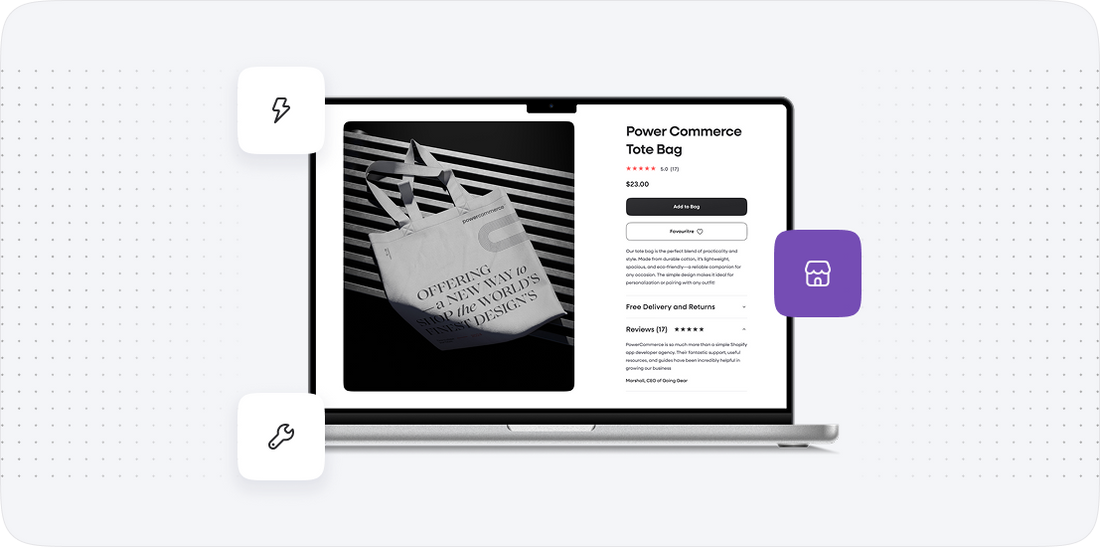
The data migration process is one of the most critical aspects of transitioning from Webflow to Unas. This step involves transferring your products, customer information, and order history while maintaining data integrity and accuracy.
Here’s a detailed breakdown of the process:
- Prepare CSV Files: Utilize the data exported from Webflow to prepare CSV files for Unas. Ensure that the format aligns with Unas's import specifications.
- Migrate Product Data: Start by importing your product data into Unas. This includes product names, descriptions, prices, images, and inventory levels. Verify that all data maps correctly to the corresponding fields in Unas.
- Customer Data Import: Next, import customer information, including names, emails, and order histories. This is crucial for maintaining customer relationships and ensuring a smooth transition for your returning customers.
- Order History Migration: If applicable, import historical order data to provide continuity for customer service and reporting. This step may require custom scripts or tools to ensure proper formatting and accuracy.
- Data Validation: After importing, validate the data within Unas to ensure everything has transferred accurately. Check for missing or incorrectly formatted data and make necessary adjustments.
By carefully executing these steps, you will ensure a smooth and reliable migration of all essential data from Webflow to Unas.
Step 4: URL Structure and Redirects
Maintaining your site's URL structure during migration is vital for preserving search engine optimization (SEO) rankings and providing a seamless user experience. This step involves planning how your URLs will be structured on Unas and setting up proper redirects to guide users from old URLs to new ones.
Follow these steps to manage URL structure and redirects:
- Review Current URLs: Compile a list of all existing URLs from your Webflow site. This will help you understand how they are structured and how they can be mirrored in Unas.
- Plan New URLs: Determine if the URLs will remain the same or if modifications are necessary. Unas may have different URL formatting; ensure that any changes align with SEO best practices.
- Set Up 301 Redirects: Implement 301 redirects from the old URLs to the new URLs in Unas. This is crucial for preserving SEO value and ensuring users who click on old links are directed to the correct content.
- Test Redirects: After setting up redirects, thoroughly test them to ensure they work correctly. Use tools such as Google Search Console to identify any broken links or errors.
Completing this step will help maintain your site's authority and ensure an uninterrupted user experience during and after the migration process.
Step 5: SEO Configuration
SEO is a critical component of any ecommerce website, and configuring it correctly in Unas is essential to maintain visibility in search engines following your migration from Webflow. This step focuses on optimizing your site's SEO settings to ensure a smooth transition and continued search engine success.
Here’s how to configure SEO on Unas:
- Set Up Metadata: Enter relevant metadata for all pages, including page titles, meta descriptions, and keywords. Ensure these align with your previous Webflow settings for consistency.
- Create and Submit Sitemaps: Unas can automatically generate sitemaps. Ensure this feature is enabled and submit the sitemap to search engines through tools like Google Search Console.
- Optimize Content: Review and optimize your content for SEO best practices. This includes using appropriate heading tags, alt attributes for images, and ensuring content is keyword-rich and relevant.
- Review Analytics: After migration, monitor your site’s traffic and rankings closely. Use analytics tools to track performance and make adjustments as necessary to your SEO strategy.
By configuring these SEO elements effectively, you will help ensure that your Unas site maintains its search engine visibility and continues to attract organic traffic.
Step 6: Design and User Experience Enhancements
After successfully migrating your data and setting up your SEO, the next step is to focus on the design and user experience of your Unas store. This is an opportunity to enhance the visual appeal and functionality of your site to better engage customers.
To proceed with design enhancements, follow these guidelines:
- Choose a Template: Unas offers a variety of customizable templates. Select one that aligns with your brand identity and enhances user navigation.
- Customize for Brand Consistency: Ensure that the design elements--such as colors, fonts, and logos--are consistent with your brand. Unas allows for extensive customization to achieve this.
- Improve Navigation: Streamline your site’s navigation to enhance user experience. This includes creating intuitive menus and ensuring that users can easily find products and information.
- Implement Responsive Design: Test and ensure that your site is fully responsive, providing a seamless experience across all devices, including mobile and tablets.
By focusing on these aspects, you will create a visually appealing and user-friendly Unas site that can improve customer engagement and conversion rates.
Step 7: Quality Assurance and Testing
Before officially launching your Unas site, it is critical to conduct comprehensive quality assurance (QA) and testing. This ensures that everything functions as intended and provides a positive user experience.
Here’s how to perform effective QA and testing:
- Functionality Testing: Check all site functionalities, including product pages, shopping cart, checkout process, and payment processing. Ensure that everything operates smoothly.
- Cross-Browser Testing: Test your site across different browsers (Chrome, Firefox, Safari, etc.) and devices (desktop, tablet, mobile) to confirm consistent performance and appearance.
- Load Testing: Simulate traffic to see how your site handles multiple users. This helps identify performance issues that may arise under high traffic conditions.
- SEO Testing: Use SEO tools to verify that all optimization settings are applied correctly and that there are no broken links or errors in metadata.
- User Testing: Consider having a small group of users navigate the site to gather feedback on usability and design. Make adjustments based on their input.
Completing these QA steps will ensure that your Unas site is ready for launch and capable of providing an excellent experience for your customers.
Power Your Step - Get in Touch
Are you ready to take the next step in your ecommerce journey? At PowerCommerce, we specialize in facilitating smooth migrations from Webflow to Unas, helping you navigate the complexities of the transition with ease. Our team of experts is dedicated to providing tailored solutions that meet your unique business needs.
To get started, follow these simple steps:
- Visit our contact page to fill out our form.
- Call us directly at 800-099-9090 for immediate assistance.
- Email us at [email protected] for any inquiries or to schedule a consultation.
With our commitment to innovation and customer satisfaction, we will ensure that your migration process is seamless, efficient, and successful. Don’t hesitate--reach out to us today!

Unlock dedicated support to shape an incredible future with solutions crafted for scale and innovation.
Let's WorkStay aligned on what's happening in the commerce world


Trusted by 1000+ innovative companies worldwide
Schedule Your Migration Today
For businesses prioritizing simplicity, scalability, and robust support, Shopify is the clear winner.
Looking to migrate without hassle? Power Commerce can handle the entire process, ensuring smooth data transfer, store setup, and post-launch success.
Marka Marulića 2, Sarajevo, 71000 BiH
[email protected]