








Ubercart to Visualsoft
Migrating your store from Ubercart to Visualsoft might seem daunting, but with proper planning and the right tools, it's a smooth process. Follow this step-by-step guide to ensure a successful transition.
Schedule a call
Step-by-Step Migration Guide: Ubercart to Visualsoft Migration Guide
Step 1: Pre-Migration Planning
In this initial step, we outline the critical elements of pre-migration planning, including auditing your current Ubercart store and defining your migration scope.
Step 2: Data Backup
We emphasize the importance of data backup in this step, detailing how to effectively back up your Ubercart store's database and files.
Step 3: Set Up Visualsoft Environment
In this step, we guide you through setting up your Visualsoft environment to prepare for the data migration.
Step 4: Data Migration Process
In this step, we detail the core data migration process, focusing on moving data from Ubercart to Visualsoft.
Step 5: Data Verification and Quality Assurance
Data verification is critical after migration. We outline how to check the integrity of migrated data in Visualsoft.
Step 6: Go Live
In this step, we focus on the final preparations and steps required to launch your new Visualsoft store.
Step 7: Post-Migration Support
This final step emphasizes the importance of ongoing support and optimization post-migration.
Power Your Step - Get in Touch
Contact PowerCommerce for expert migration support and to ensure a seamless transition to Visualsoft.
Step 1: Pre-Migration Planning
Before initiating the migration from Ubercart to Visualsoft, we must conduct thorough pre-migration planning. This phase is essential to ensure that the transition is smooth and successful. The primary objectives of this step include gathering information about your current setup, identifying the data to migrate, and assessing the configuration of both platforms.
Key actions during this phase include:
- Audit Current Ubercart Store: Take inventory of all existing data, including products, categories, customers, orders, and any custom configurations. This will help us understand what needs to be migrated.
- Define Migration Scope: Determine which data types (e.g., products, orders, customer information) will be migrated and any additional options needed (like preserving order IDs or migrating SEO data).
- Evaluate Visualsoft Requirements: Familiarize ourselves with Visualsoft's requirements, ensuring that our data and configurations are compatible with the new platform.
- Backup Existing Data: Create a complete backup of your Ubercart store's database and files. This is a precautionary measure to safeguard your data in case of unexpected issues during migration.
- Plan for Downtime: Schedule the migration during off-peak hours to minimize disruption to your business operations.
By completing these pre-migration tasks, we set the foundation for a successful migration process.
Step 2: Data Backup
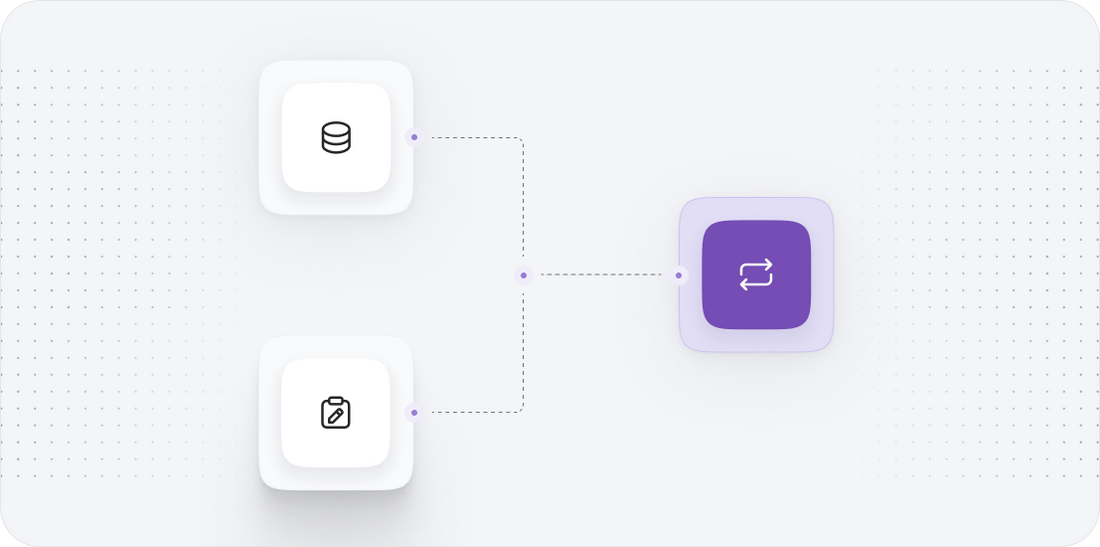
Data backup is a crucial step in the migration process to ensure data integrity and security. This step involves creating comprehensive backups of your Ubercart store's database and files. By having a secure copy of your data, we can mitigate risks associated with the migration process.
The following guidelines outline the data backup process:
- Backup Database: Use tools like phpMyAdmin or command-line utilities to export your Ubercart database. This typically involves:
- Logging into your hosting account and accessing phpMyAdmin.
- Selecting your Ubercart database from the list.
- Clicking on the "Export" option and selecting the export method (Quick or Custom).
- Choosing the format (usually SQL) and clicking on "Go" to download the backup file.
- Backup Files: Ensure that all essential files associated with your Ubercart store are backed up. This includes:
- Core Ubercart files
- Custom themes and templates
- Media files (images, videos, etc.)
- Configuration files
- Store Backup Location: Store the backups in a secure location, such as an external hard drive or a cloud storage service, to ensure they are easily accessible in case of an emergency.
Performing a thorough data backup not only protects your current store setup but also provides peace of mind as we proceed with the migration.

Step 3: Set Up Visualsoft Environment
Setting up the Visualsoft environment is a pivotal step in the migration process from Ubercart. This step includes ensuring that your Visualsoft store is properly configured and ready to receive data from your Ubercart store. Here’s how we can achieve this:
Key actions include:
- Sign Up for a Visualsoft Account: Create a new account on the Visualsoft platform if you haven't already. This will provide access to the necessary tools and features for your online store.
- Configure Store Settings: Upon creating your Visualsoft account, configure the basic settings of your store, including:
- Store name and logo
- Currency settings
- Shipping and tax options
- Payment gateways
- Choose a Theme: Select a theme that aligns with your brand identity. Visualsoft offers various customizable themes that can enhance your store's appearance.
- Test the Environment: Before proceeding further, ensure that the Visualsoft environment is functioning correctly. Check for any errors or issues that need to be resolved before the migration.
By effectively setting up your Visualsoft environment, we ensure that the foundation is laid for a smooth and efficient migration.

Step 4: Data Migration Process
The data migration process is the heart of our migration from Ubercart to Visualsoft. This involves transferring all relevant data from your Ubercart store to the newly set up Visualsoft environment. To execute this process effectively, we follow these guidelines:
Steps involved in the data migration include:
- Select Data Types: Identify which data types will be migrated, such as:
- Products
- Categories
- Customer data
- Orders
- Utilize Migration Tools: Depending on the complexity and volume of data, we may opt for various migration tools or services that facilitate this transition. Popular options include:
- Automated migration services like Cart2Cart for a seamless transfer
- Manual migration via CSV import/export if preferable for smaller stores
- Perform Migration: Initiate the migration process according to the chosen method. Ensure that:
- Data integrity is maintained throughout the migration
- All relationships between products, categories, and orders are preserved
- Monitor Migration Progress: Keep an eye on the progress of the migration. This may involve:
- Checking for errors or issues during the transfer
- Documenting any anomalies for troubleshooting
Once the migration is complete, we can proceed to verify the accuracy and completeness of the migrated data.
Step 5: Data Verification and Quality Assurance
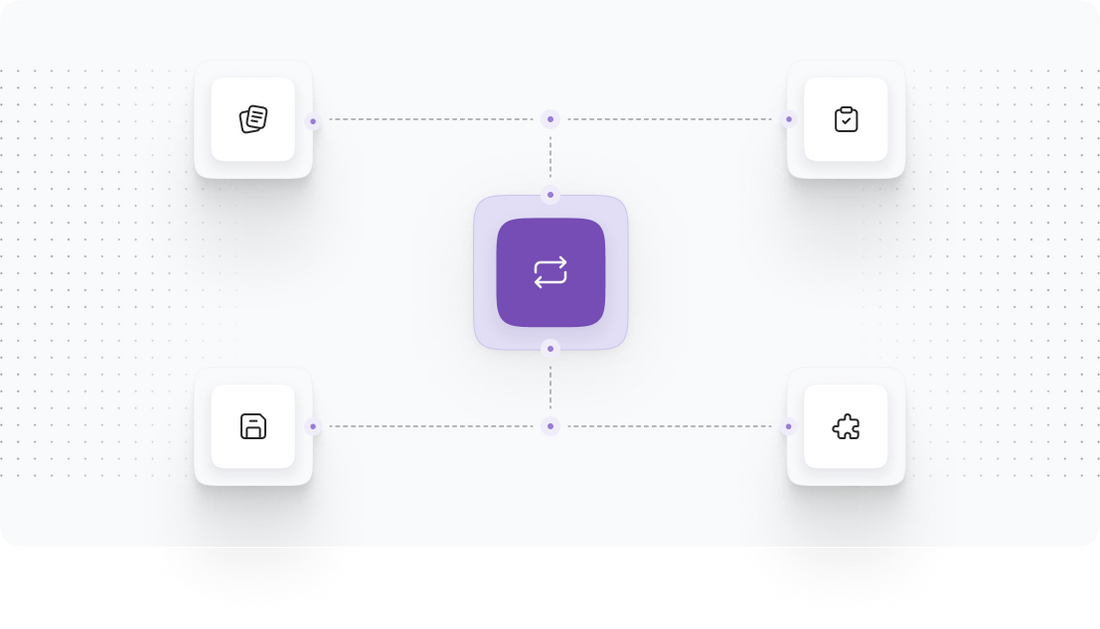
After the data migration from Ubercart to Visualsoft, it is crucial to conduct a thorough verification and quality assurance process. This step ensures that all data has been accurately transferred and is functioning as expected in the new environment.
Key actions during this phase include:
- Verify Data Accuracy: Check that all migrated data, including products, categories, and customer information, is present and accurate. Steps include:
- Comparing a sample of migrated products against the original Ubercart data
- Reviewing customer accounts and order histories for completeness
- Test Store Functionality: Ensure that all aspects of the store are operational, including:
- Product search and filtering capabilities
- Checkout process and payment processing
- Customer login and account management
- Check for Broken Links: Utilize tools to identify any broken links or missing images on the website. This can be done through:
- Website crawlers or SEO audit tools
- Manual checks of key pages
- Review SEO Settings: Ensure that SEO settings, including meta tags and URLs, have been correctly configured post-migration. This may involve:
- Setting up 301 redirects for any changed URLs
- Ensuring all SEO metadata is in place for each product and category
By completing these verification tasks, we can confidently move forward, knowing that the migrated Visualsoft store is ready for launch.
Step 6: Go Live
With all data verified and store functionality confirmed, we are ready to go live with your new Visualsoft store. This step involves final preparations and executing the launch process. Key actions include:
Steps to go live:
- Final Checks: Before going live, conduct a last review of:
- Store settings and configurations
- Payment gateways and shipping options
- DNS Updates: If your domain is registered with a different provider, update your DNS settings to point to the new Visualsoft store. This process involves:
- Accessing your domain registrar account
- Updating the A record to the IP address of your Visualsoft store
- Monitor Launch: Upon launching, closely monitor the site for any issues. This includes:
- Tracking site performance metrics
- Monitoring customer interactions and feedback
- Communicate with Customers: Inform your existing customers about the migration and any changes they should expect. This can be done through:
- Email newsletters
- Social media announcements
By executing these steps diligently, we can ensure a smooth transition to your new Visualsoft store, ready to serve your customers effectively.
Step 7: Post-Migration Support
After the launch of your Visualsoft store, ongoing support is crucial for ensuring continued success. This step highlights the available post-migration support and optimization strategies that we can implement.
Key aspects of post-migration support include:
- Continuous Monitoring: Regularly monitor the performance of your store, focusing on metrics such as:
- Traffic and conversion rates
- Customer feedback and reviews
- Technical Support: Access to technical support for any issues that may arise post-launch. This includes:
- Resolving bugs or errors
- Assistance with new feature implementation
- Optimization Strategies: Implement strategies to enhance store performance, such as:
- SEO optimization for improved visibility
- Conversion rate optimization techniques
- Customer Engagement: Engage with customers to gather feedback and improve their shopping experience. This can involve:
- Surveys and feedback forms
- Regular communication through newsletters
By providing robust post-migration support, we can help your Visualsoft store thrive in its new environment, fostering growth and customer satisfaction.
Power Your Step - Get in Touch
Ready to take the next step? At PowerCommerce, we are committed to providing you with expert support for your migration from Ubercart to Visualsoft. Our experienced team is here to assist you at every stage of the process, ensuring a smooth transition with minimal downtime.
Contact us today! Here’s how you can reach us:
- Visit our contact form for inquiries.
- Call us directly at 800-099-9090.
- Email us at [email protected].
Don’t wait! Let’s power your ecommerce success together with our innovative solutions and dedicated support!

Unlock dedicated support to shape an incredible future with solutions crafted for scale and innovation.
Let's WorkStay aligned on what's happening in the commerce world


Trusted by 1000+ innovative companies worldwide
Schedule Your Migration Today
For businesses prioritizing simplicity, scalability, and robust support, Shopify is the clear winner.
Looking to migrate without hassle? Power Commerce can handle the entire process, ensuring smooth data transfer, store setup, and post-launch success.
Marka Marulića 2, Sarajevo, 71000 BiH
[email protected]